Playing Minecraft Bedrock mods with friends is one of the best parts of the add-on scene, but multiplayer adds a few extra rules. Packs have to live on the world itself, everyone needs a compatible game version, and console players cannot import files the way phone and PC players can. This guide walks through the three main ways to share Bedrock add-ons: a Realm, a friend's world (including LAN), and a dedicated server. You will learn the official Realm Hub steps, how community packs reach a Realm, and what to check before you invite anyone.
How Bedrock Add-ons Work in Multiplayer
In Bedrock, behavior packs and resource packs are attached to a world, not to a player. Whoever hosts the world decides which packs are active. When other players join, the resource packs they need are downloaded to their device as part of joining, so they see the same custom mobs, blocks and textures as the host.
That one fact explains almost everything else in this guide. The host does the setup work, and guests mostly just connect. It also means a console player can enjoy a modded world they could never build themselves, as long as someone on a supported device sets it up first.
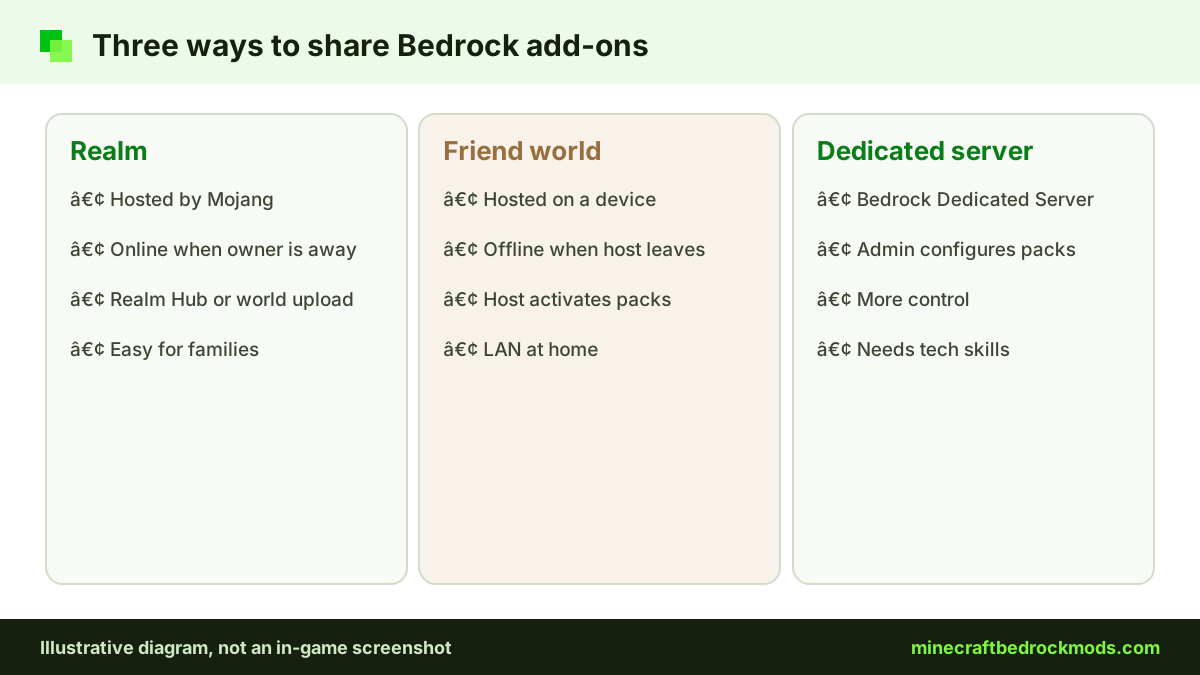
Realm vs Friend World vs Dedicated Server
Each multiplayer option handles add-ons a little differently. Use this table to pick the one that suits your group.
| Option | Who hosts | How packs get on | Online when host is away? | Best for |
|---|---|---|---|---|
| Realm | Mojang's Realms service, managed by the owner | Realm Hub (Marketplace packs) or uploading a world that already has packs | Yes | Small groups of friends and families |
| Friend's world | The host's own device | Packs activated on the host's local world | No | Quick sessions, LAN play at home |
| Dedicated server | A computer running Bedrock Dedicated Server | Configured by the server admin | Yes, while the server runs | Larger groups with a technical admin |
Adding Marketplace Packs to a Realm
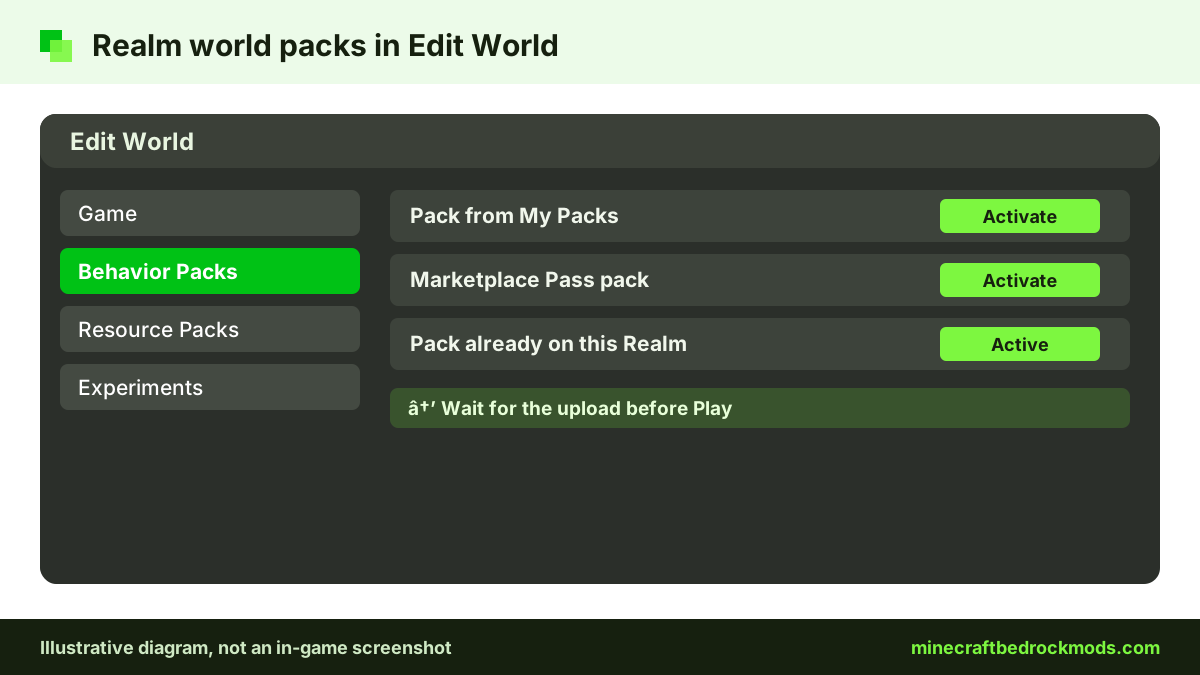
The official Minecraft Help Center guide to activating add-ons lists the Realm steps. Only the Realm owner can do this:
- Select Play, then Realms, and pick your Realm.
- Open the Realm Hub and go to the World tab.
- Select the world slot you want, then choose Edit World.
- Under Add-Ons, open Resource Packs or Behavior Packs.
- Activate a pack from My Packs or Marketplace Pass Packs, then confirm.
- Press the back button and wait for the upload to finish, then select Play.
Marketplace content can be bought on any platform that runs Bedrock and added to single-player and multiplayer worlds, so this route works for Realm owners on consoles too. You can read more about the Realms service on the official Minecraft Realms page.

Getting Community Add-ons Onto a Realm
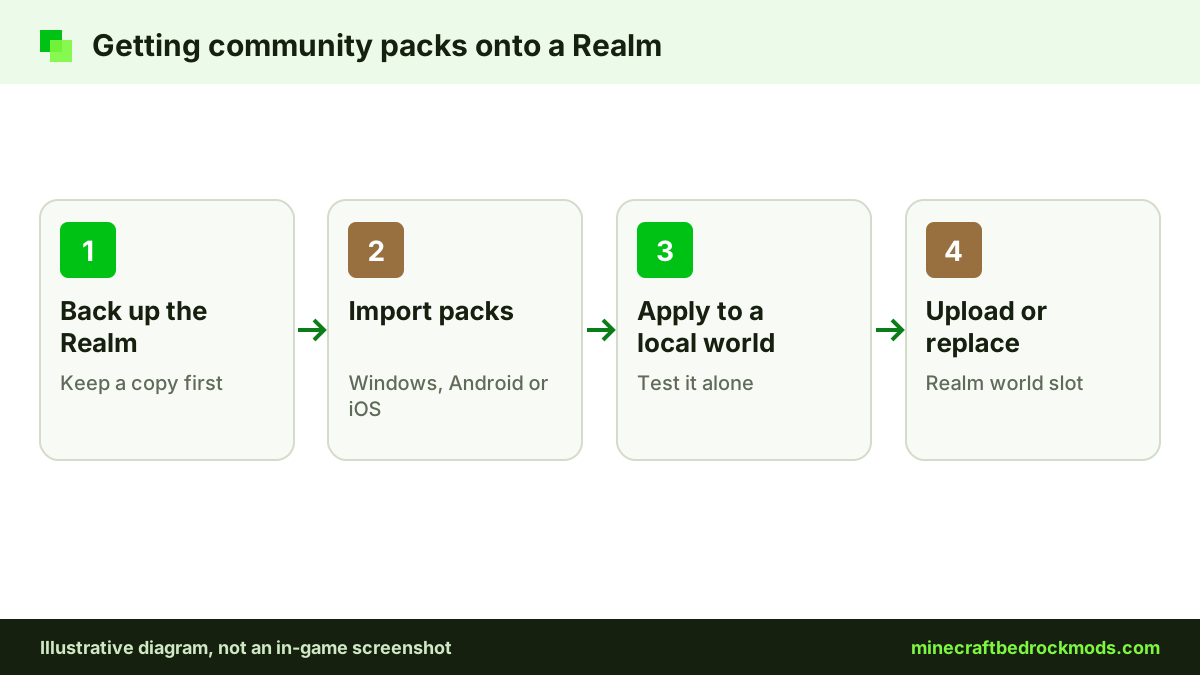
Free community packs from sites such as CurseForge or MCPEDL do not appear in the Realm Hub list. Instead, they reach a Realm inside a world. The general pattern looks like this:
- Back up first. Download or copy the current Realm world so you can restore it if anything goes wrong.
- Import the packs on a supported device. Use Windows, Android or iOS, since these can open
.mcpackand.mcaddonfiles. - Apply the packs to a local world. Activate the behavior and resource packs, plus any experiments the creator lists, and test it alone first.
- Upload or replace the Realm world. Use the Realm's world options to replace a slot with your local world. Menu wording can change between versions, so follow what your game shows.
Replacing a Realm world overwrites what is in that slot, which is why the backup comes first. Our guide to backing up and transferring modded worlds covers exports in more detail, and the CurseForge guide explains how to pick the right file before you start.
Pro tip: Keep a short note of every pack and file version you uploaded to the Realm. When a creator releases an update, or a friend reports a bug, you will know exactly what is running and which pieces need replacing on your local copy before the next upload.
How Console Players Join Modded Realms and Worlds
Xbox, PlayStation and Switch cannot import community .mcpack, .mcaddon or .mcworld files. Players have asked for this on the official feedback site for years, but it is not supported. What consoles can do is join a Realm, server or friend's world that already runs packs.
When a console player joins, the resource packs download automatically, and the behavior side runs on the host. The console player does not need to touch any files. For a Realm, the owner sets everything up on a supported device, then invites the console player as a member. If you mainly play on a console, our console add-ons guide explains the Marketplace side.
Friends' Worlds and LAN Play
The simplest multiplayer setup is joining a friend's world. The host activates packs on their own world, makes sure multiplayer is enabled in the world settings, and invites friends through their Microsoft account friends list. Players on the same home network can also find the world through LAN.
The catch is that the world is only online while the host plays. If the host leaves, everyone is disconnected. Heavier add-ons also put extra load on the host's device, so a mid-range phone may struggle with several guests and a big pack at the same time.
Bedrock Dedicated Servers: The High-Level Picture
Mojang offers the Bedrock Dedicated Server download for people who want to run their own server. It is aimed at technical users who are comfortable with configuration files and keeping software updated. The server admin decides which packs load, and players who join receive the resource packs they need.
For most families and small friend groups, a Realm is easier. A dedicated server makes sense when you want more control, more players, or a world that stays online on your own hardware.
Running a server also means owning its upkeep. When Bedrock updates, the server software and every add-on on it need to keep pace, or players on the newest game version may be unable to connect. Plan a few minutes of maintenance after each major release.
Experiments on Realms and Servers
Some community add-ons require experimental toggles. A world with experiments enabled can behave differently in multiplayer, and some Realms or servers may restrict experimental worlds. Check the add-on's description, and check the current rules in the Minecraft Help Center before uploading an experimental world to a Realm. If a pack needs experiments, test the full upload on a spare world slot first.
Version Matching for Everyone in the Group
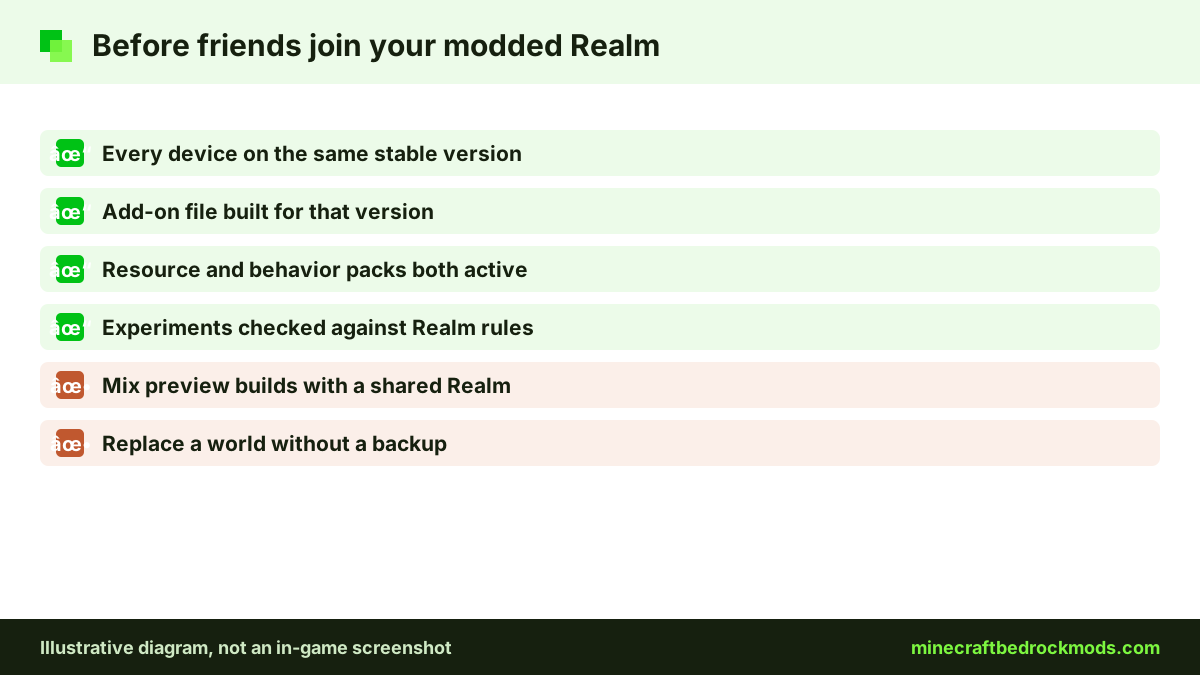
Bedrock 26.60 was the latest stable release when we checked on November 5, 2026, with 26.70 in preview. To avoid connection problems, update every device in the group to the same stable version before joining. Preview builds are not a good match for a shared Realm.
Add-ons need to match too. A pack built for an older version may break after an update, and that breaks it for everyone. Check the creator's page for a newer file after each major update.
Platform Notes
- Windows 10/11: the easiest place to import community packs, test them and upload a world to a Realm.
- Android and iOS / iPadOS: can import files and upload worlds too, though large worlds take longer over mobile connections.
- Xbox, PlayStation and Switch: can use Marketplace packs on a Realm and join modded worlds, but cannot import community files.
Achievements are worth knowing about as well. Official Minecraft guidance says only Marketplace add-ons allow achievements, so a world with community packs will not earn them. Our achievements guide explains the details.
Troubleshooting Multiplayer Add-ons
- Friends see missing textures. Make sure the resource pack is active on the world, not only the behavior pack, and ask them to rejoin so the download finishes.
- A version error or cannot connect. Everyone needs the same game version. Update the game on every device.
- Pack missing after upload. The upload may not have finished. Wait on the Realm screen until it completes, then check the world's pack list again.
- Realm world will not load. Restore your backup, then add packs back one at a time on a local copy to find the problem.
- A console friend sees default blocks. The pack may only exist on the host's device, not on the uploaded world. Re-check the Realm world's pack list and upload again if needed.
- Slow downloads on join. Large texture packs take time. A lighter resource pack helps players on weak connections.
Safety for Kids on Public Servers
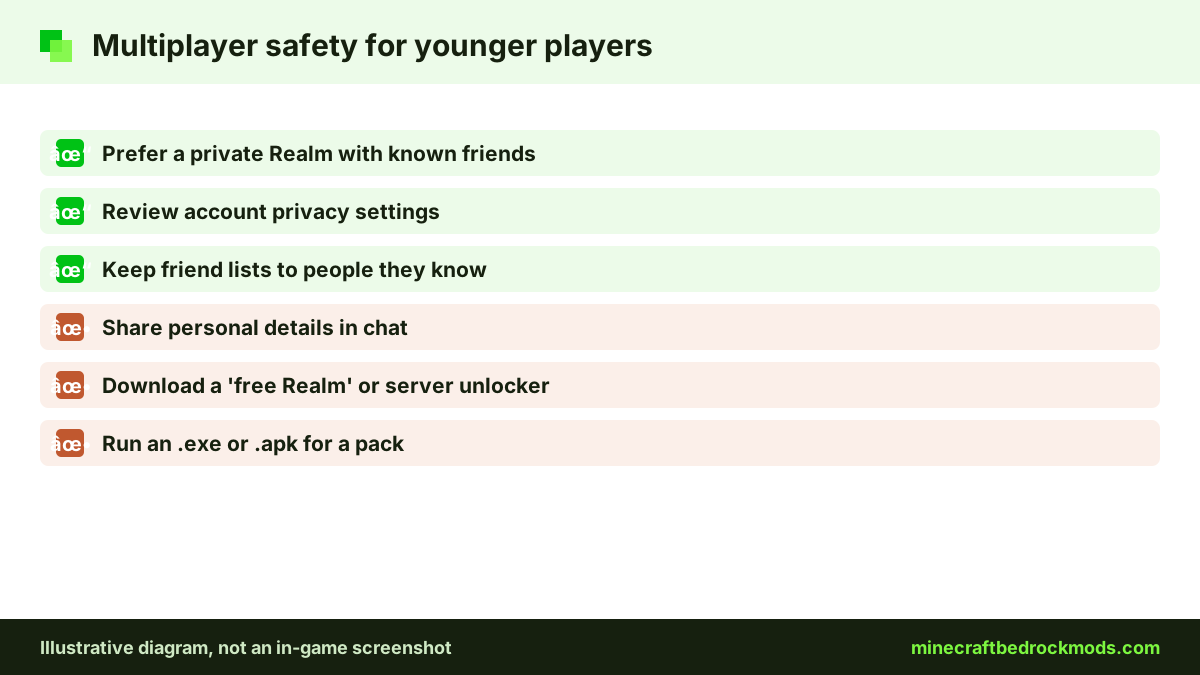
A private Realm with known friends is usually the safest way for younger players to enjoy multiplayer add-ons. Public servers are different: anyone can join, chat may not be moderated, and some servers push in-game purchases.
Parents should check Xbox or Microsoft account privacy and multiplayer settings, keep friend lists to people the child knows, and talk about never sharing personal details in chat. Be wary of any site promising a "free Realm" or a download that "unlocks" a server, since real packs never need an .exe or .apk. Our safety and scams guide covers this in depth.
Frequently Asked Questions
Yes, indirectly. Community packs do not show in the Realm Hub list, so you import them on Windows, Android or iOS, apply them to a local world, then upload or replace the Realm world with it. Back up the Realm world first.
No. Packs are attached to the world, and the resource packs players need download when they join. Guests only need a compatible game version.
Yes. Console players cannot import community files themselves, but they can join a Realm, server or friend's world that already runs packs. The Realm owner sets it up on a supported device.
The official steps let the owner activate packs from My Packs or Marketplace Pass Packs under Edit World. Marketplace content can be bought on any Bedrock platform.
Some Realms or servers may restrict experimental worlds. Check the add-on's description and the Minecraft Help Center, and test on a spare world slot before replacing your main world.
A Realm is easier for families and small groups because Mojang hosts it. Bedrock Dedicated Server gives more control but needs a technical admin who keeps it updated.
Conclusion
Multiplayer add-ons come down to one idea: the host sets up the world, and everyone else joins it. A Realm is the easiest option for most groups, with Marketplace packs activated in the Realm Hub and community packs arriving inside an uploaded world. Friends' worlds suit quick sessions, and a dedicated server suits groups with a technical admin.
Before each session, back up the world, match game versions, check any experiments and keep younger players on private Realms with people they know. Do that, and your whole group, including console friends, can enjoy the same Bedrock add-ons together.