Keeping Minecraft Bedrock mods up to date and your worlds safe is mostly a matter of routine. Creators push fixes, the game itself updates regularly, and phones get replaced. This guide covers how to update Bedrock add-ons without damaging a world, how to back up with Copy World and Export World, and how to move a modded world between Android, iPhone, Windows and consoles.
None of it needs extra apps. Everything below uses features built into Bedrock plus ordinary cloud storage or file sharing.
How to Update Bedrock Add-ons Safely
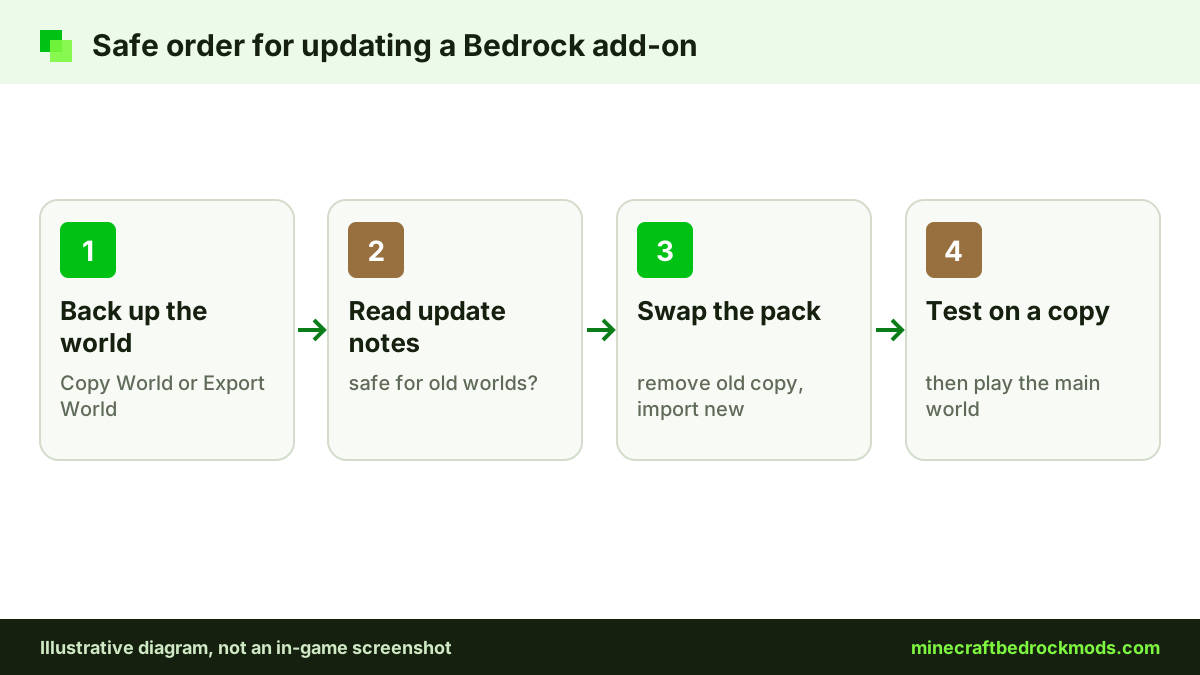
Updating an add-on is not like updating an app. Minecraft keeps each imported pack as its own copy, and each world remembers which packs it uses, identified by UUID and version. Follow this order:
- Back up the world first, as described in the next section.
- Read the creator's update notes. Some updates are safe for existing worlds; others recommend starting fresh.
- Remove the old pack copy from Settings > Storage if the creator advises it, so the old and new versions do not compete.
- Import the new file by opening the .mcaddon or .mcpack, the same way as a first install.
- Check the world's Behavior Packs and Resource Packs screens and confirm that only the new version is active.
- Test on a copy before you play the main world.
If you are new to importing files, our step-by-step add-on download guide covers each platform.
Duplicate UUID and version issues
Packs are recognized by their UUID and version number. If an update keeps the same UUID but forgets to raise the version, the game can keep showing the old copy or say the pack is already imported. Removing the old copy and importing again usually fixes it. If an update arrives with a brand-new UUID, your world will not switch on its own; deactivate the old pack and activate the new one yourself. Creators can avoid both problems by following the versioning advice in our beginner guide to making add-ons.
Tip: Before removing any add-on from a world, move items out of custom chests and machines into vanilla containers. Blocks and items defined by a removed pack can disappear or turn into placeholders.
Backing Up a Modded World
Bedrock gives you two built-in backup tools in a world's edit screen. Menu labels can move between versions, so look for these names rather than an exact path:
- Copy World makes an in-game duplicate on the same device. It is quick and ideal before an add-on update, but it does not help if the device is lost or reset.
- Export World saves the world as a
.mcworldfile on devices that support file export. Keep that file in cloud storage or on a computer, and import it later simply by opening it.
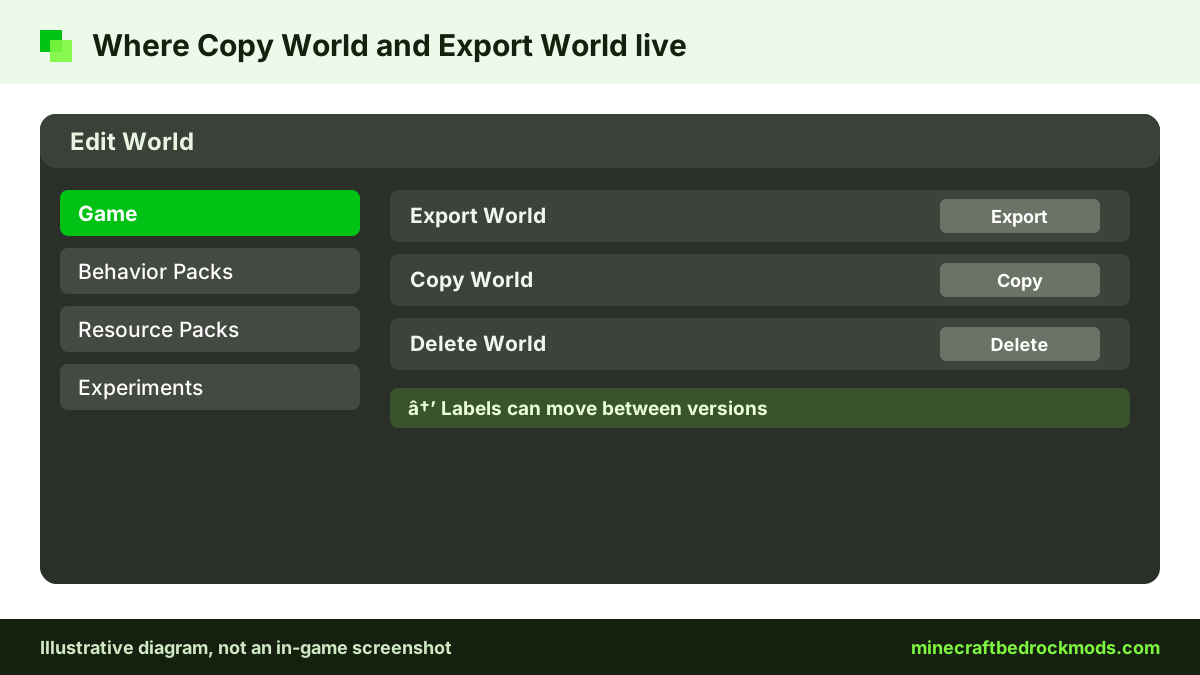
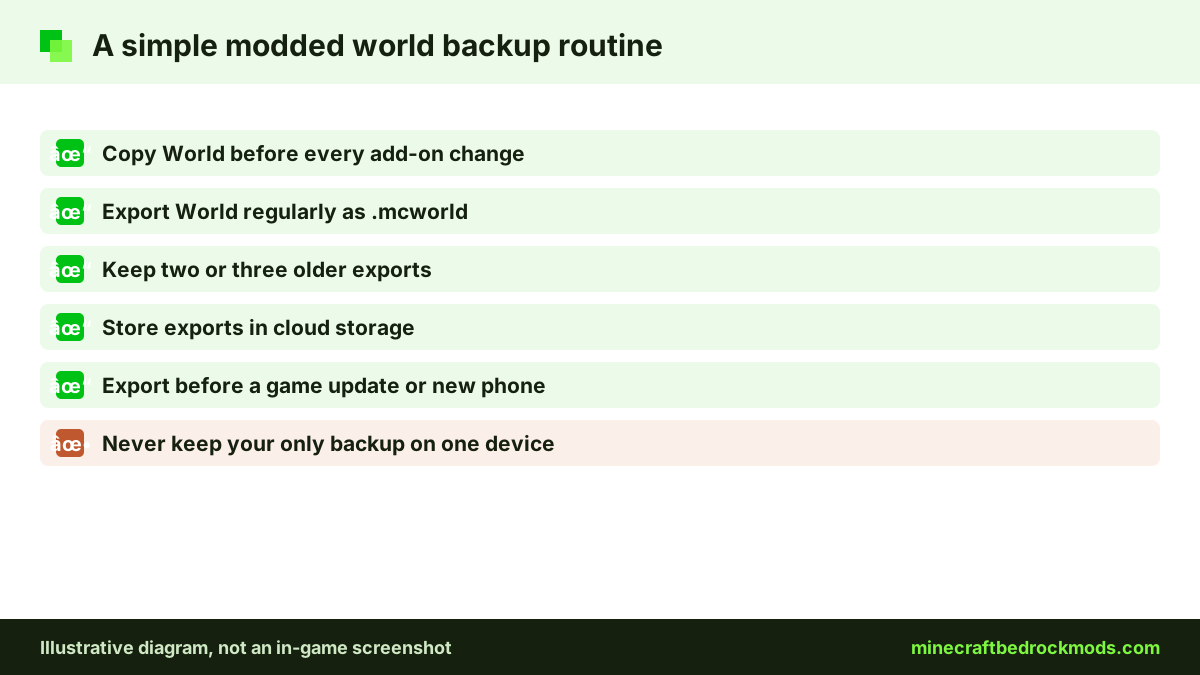
A sensible routine is Copy World before every add-on change and Export World regularly, plus before any device swap. Keep two or three older exports so one corrupted backup does not leave you with nothing. The Minecraft Help Center has current platform-specific help if a menu looks different on your device.
What Happens to Bedrock Add-ons When You Transfer a World
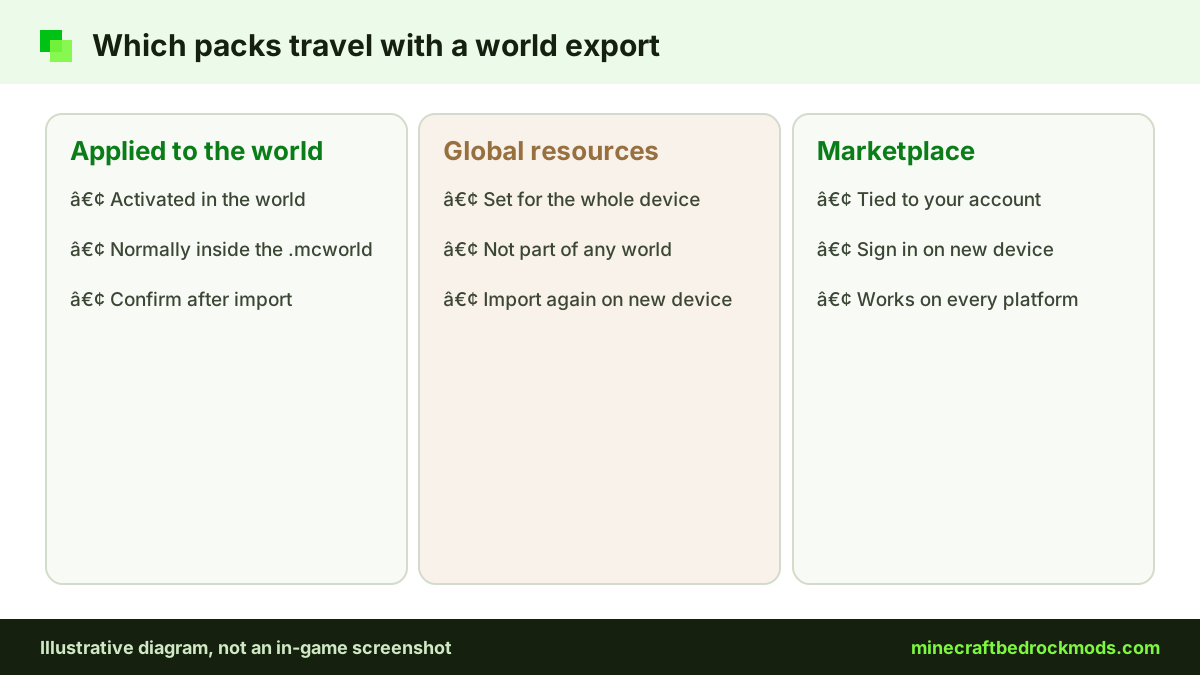
Most transfer surprises come from where a pack lives. There are three cases to know:
- Packs applied to the world: behavior and resource packs activated in a world are normally carried inside its export, so the .mcworld brings them to the new device. Still confirm they arrived, and keep the original files in case you need to re-import.
- Global resource packs: packs set under Settings > Global Resources apply to every world on that one device. They are not part of any world and do not travel with an export, so import them again on the new device.
- Marketplace content: purchases are tied to the account you bought them with, so sign in with the same Microsoft account on the new device.
After any transfer, open the world's Behavior Packs and Resource Packs screens and check that everything is listed and active before you play. It also helps to keep a small folder of the original .mcaddon and .mcpack files next to your world exports. If a pack fails to come across, or you set up a new device from scratch, you can import it again in seconds instead of hunting for the right version online.
Transfer Routes: Android, iPhone, PC and Consoles
The same idea works for every device that can import files: export a .mcworld, move it, then open it on the other device.
| Transfer route | Method | Notes |
|---|---|---|
| Android to iPhone or iPad | Export World, upload the .mcworld to cloud storage, download it on iOS and open it with Minecraft | Re-import global resource packs separately |
| iPhone or iPad to Android | Export World, share the .mcworld through cloud storage or file sharing, open it on Android | Large worlds can take a while to upload |
| PC to mobile | Export World on Windows, move the .mcworld through cloud storage, open it on the phone | Check free phone storage first |
| Mobile to PC | Export World on the phone, send the .mcworld to the PC, open the file to import it | Windows imports it straight into Minecraft |
| To or from a console | Upload the world to a Realm from one device, then play or download it from another | Consoles cannot import .mcworld files |
Android to iPhone
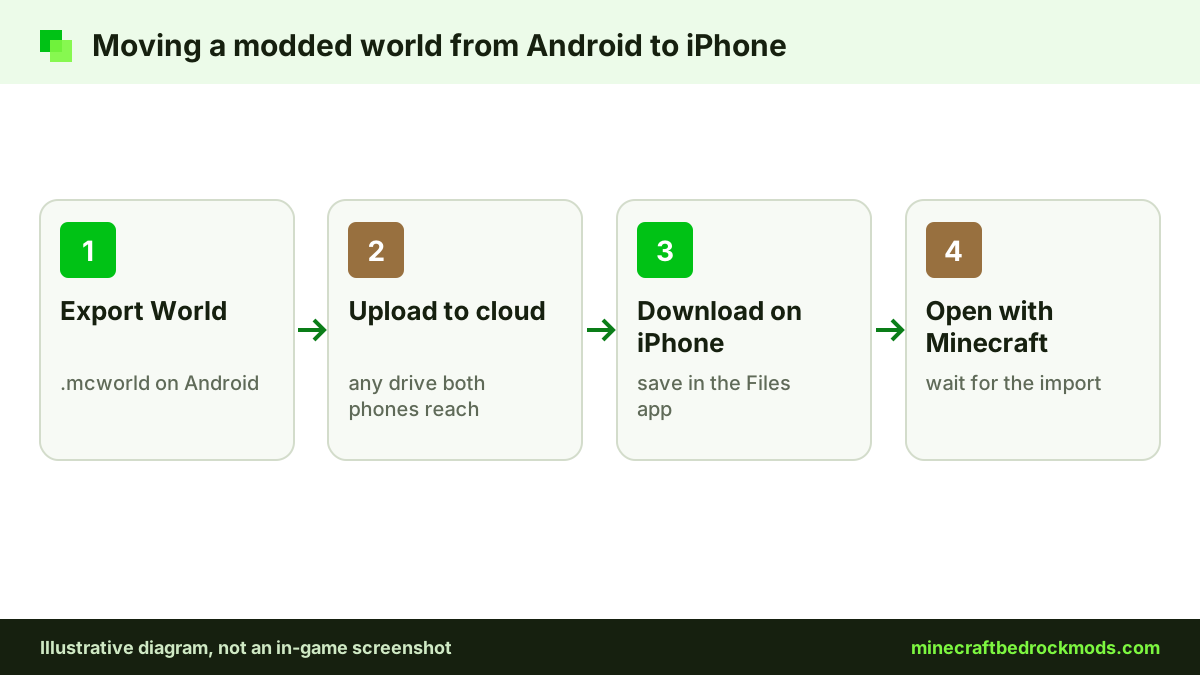
Export the world on Android and save the .mcworld to a cloud drive you can reach from both phones. On the iPhone, download it in the Files app and open it with Minecraft. Large worlds can take a minute or two to import, so let it finish before tapping anything.
PC to mobile and mobile to PC
Windows works the same way in both directions. Export the world, move the .mcworld through cloud storage or any file-sharing method you trust, then open it on the other device. Our mobile add-ons guide explains storage and file handling on Android and iOS.
Consoles and Realms
Xbox, PlayStation and Switch cannot import community .mcworld, .mcpack or .mcaddon files. To move a world onto or off a console, the general route is Minecraft Realms: upload the world to a Realm from one device, then play or download it from another. Community packs reach a Realm by being applied to a world on Windows, Android or iOS before upload. Our Realms and multiplayer add-ons guide covers the setup in detail.
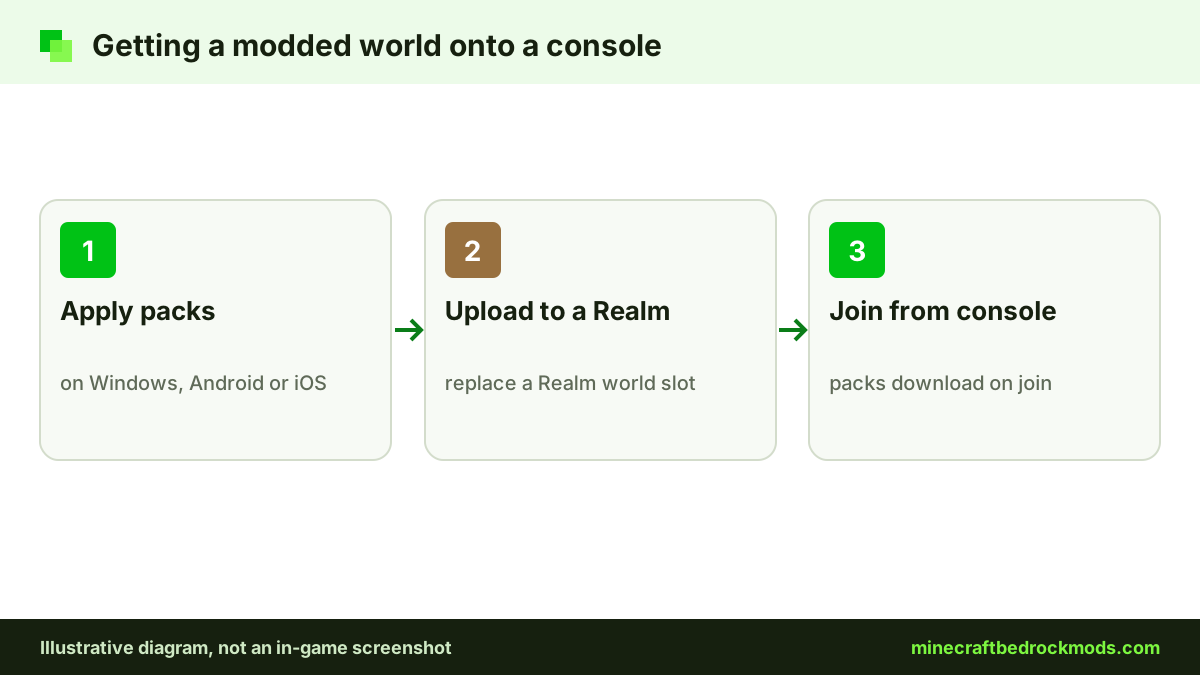
Resource packs on a Realm download to each player when they join, so console friends can see custom textures and mobs without importing anything. The same rule applies in reverse: to take a console world to a phone or PC, upload it to a Realm from the console, then download it on the device that can export and import files. Realm features and menus can change, so treat this as the general approach and confirm the current steps in the Help Center.
Realms Backups
Realms keep their own world backups, separate from your devices, and Realm owners can generally restore or download an earlier copy from the Realm's settings. Available options and how long backups are kept can change, so check the Help Center before relying on them. Keep your own Export World copy as well, especially before applying new packs to a shared Realm.
Version Note
This guide was written for Minecraft Bedrock 26.60, the latest stable release when checked on November 5, 2026. Game updates can move menu labels and change how packs behave, so read the 26.60 changelog and each creator's notes before updating a modded world. Export a backup before any major game update, too.
Platform Notes
- Android: exports usually go to a location you choose through the share or save prompt; cloud drives make transfers easy.
- iPhone and iPad: exported files appear in the share sheet, and the Files app is the easiest place to keep .mcworld backups.
- Windows 10/11: the most flexible platform for backups, since you can store exports anywhere on your drives.
- Consoles: no file import or export of community content; use Realms to move worlds. See our console add-ons guide for what consoles can and cannot do.
Troubleshooting Updates and Transfers
- "Already imported" or old version still showing: remove the old copy from Storage, then import the new file again.
- Missing textures after a transfer: a resource pack did not come across, or it was a global pack; import it on the new device.
- World will not open after an update: restore your copy, then check whether the creator recommends a new world for that version.
- The .mcworld will not import: confirm the file finished downloading and still ends in .mcworld rather than .zip.
- Experiments warning on the new device: worlds that use experimental toggles keep them, and some Realms or servers may not accept them.
Safety When Updating and Sharing Worlds
Download updates only from the original source, such as the creator's page on a reputable host or the Marketplace. Ignore "updater" tools that ask you to install an .exe or .apk, and never share your Microsoft account details to move a world. When sending a .mcworld to friends, remember it contains everything in that world, including signs and books, so check it before posting it publicly.
Frequently Asked Questions
Usually not, but an update can remove or rename blocks and items the old version added, which can leave gaps or placeholders. Back up first, read the creator's notes and test the update on a copy before touching your main world.
Copy World makes a duplicate inside Minecraft on the same device. Export World saves a .mcworld file you can store in the cloud or move to another device, which makes it the better long-term backup.
Packs activated in the world normally travel inside the .mcworld export. Global resource packs do not, and Marketplace content needs the same Microsoft account on the new device. Check the pack screens after every transfer.
Export the world as a .mcworld on Android, upload it to cloud storage, then download it on the iPhone in the Files app and open it with Minecraft to import it.
Consoles cannot import .mcworld files. The general route is to upload the world to a Realm from Windows, Android or iOS, then join it from the console. Community packs must already be applied to that world.
The new file probably shares its UUID and version with a copy already on your device. Remove the old copy from Settings, Storage, then import the new file again.
Conclusion
Safe updates come down to a simple order: back up, read the notes, remove the old copy if advised, import the new file and test on a copy. Copy World protects you on one device, while Export World gives you a portable .mcworld you can store in the cloud.
That same .mcworld file moves worlds between Android, iPhone and Windows, while consoles rely on Realms. Re-import global packs on the new device, check every pack screen after a transfer, and your modded worlds will survive both game updates and new phones.