Minecraft Bedrock mods run well on phones and tablets, and for many players mobile is the main way they play. Bedrock on Android, iPhone and iPad imports community add-ons directly, with no computer involved. Each system handles files differently, though, and phones have limits on storage, heat and battery that a desktop never worries about. This walkthrough covers setup on both platforms, then the practical side of keeping a modded world smooth on a small screen.
It assumes you have the official Bedrock Edition installed from your device's app store and download add-ons from a reputable source.
Before You Start: Files, Formats and Backups
Bedrock add-ons are not apps. They are packs of JSON definitions, textures and sounds, sometimes with scripts for the official Script API. They arrive as one of four file types:
.mcpackfor a single behavior or resource pack.mcaddonfor a bundle, usually a behavior pack plus a resource pack.mcworldfor a complete world.mctemplatefor a world template
If a page asks you to install an .apk or another app to "unlock" an add-on, leave. Back up the world you plan to change first: the Export World option in a world's settings saves an .mcworld copy you can re-import if anything goes wrong. Our guide to backing up and transferring worlds covers moving that file between devices.
Minecraft Bedrock Mods Mobile Setup on Android
Android's open file system makes this quick once the file is downloaded.
Open from the browser or notification
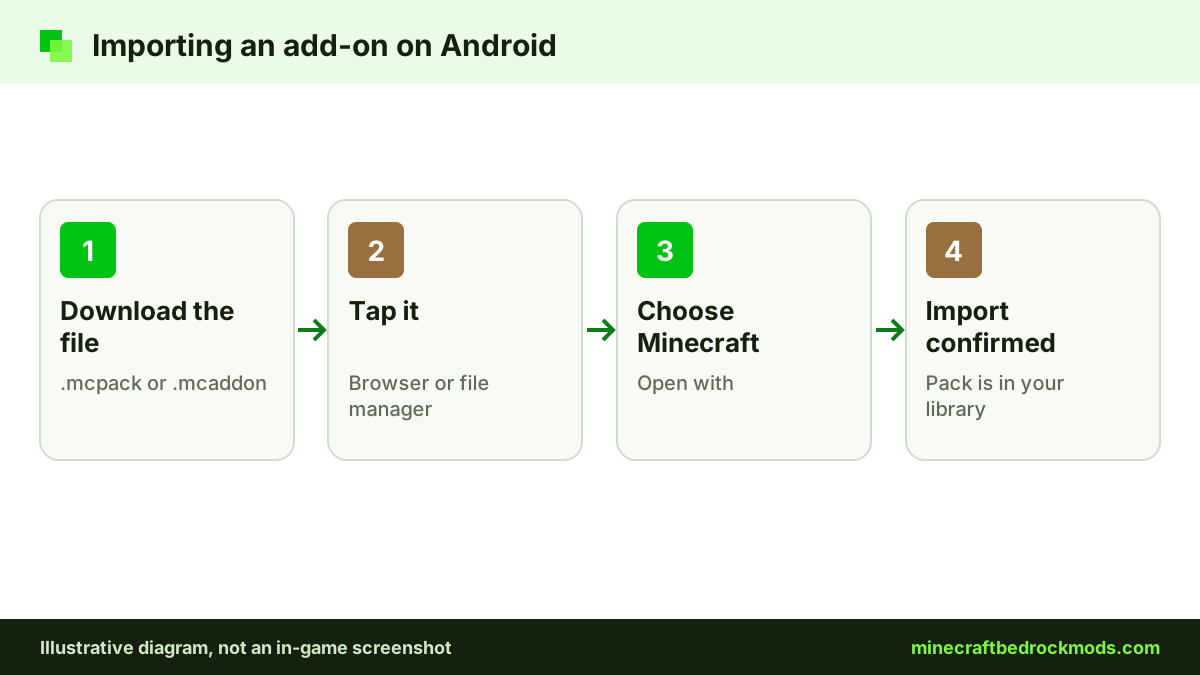
Tap the finished file in your browser's downloads list or the notification shade. If Android asks which app to use, pick Minecraft. The game opens, shows an import message, then confirms when it is done.
Use a file manager
If tapping does nothing, open your file manager (the built-in Files app or another you trust), go to Downloads and tap the add-on. Choose Open with, then Minecraft. Some phones need a long-press and the share menu instead.
When the import does not start
Browsers sometimes add .zip or strip the extension. Rename the file back to .mcpack or .mcaddon in your file manager. If Android still opens the wrong app, clear that app's default setting in Android's app settings and try again so the chooser appears.
Bedrock Add-ons on iPhone and iPad
iOS and iPadOS keep apps sandboxed, so the Files app and the share sheet do the work.
- Download the add-on in Safari or another browser, choosing to download rather than open it.
- Open the Files app and find the Downloads folder, usually in On My iPhone or iCloud Drive.
- Long-press the file, or tap it and use the share button.
- Choose Minecraft. If it is not visible, scroll the app row and tap More.
- Wait for the import confirmation before switching away.
If Safari added .zip to the name, long-press the file in Files, choose Rename and restore the original extension. If Files hides extensions, open the file's info view to see the full name. On iPad the same share sheet works, and a larger screen makes it easier to check names before importing.

Activating Packs in Your World
Importing only adds the pack to Minecraft's library. These steps follow the official Help Center activation guide and match on Android and iOS:
- Tap Play, then the pencil icon next to an existing world, or Create New World.
- Open Behavior Packs, find the pack on the Available tab and tap Activate.
- Do the same under Resource Packs if the add-on has one. Many bundles add it automatically.
- If the creator lists experiments, enable only those toggles in Experiments.
- Tap Play, or Create for a new world.
Achievements need care: only add-ons released through the Marketplace keep them. Community packs and cheats disable achievements for that world. For file types and experiments in more depth, see our step-by-step download guide.
Pro tip: name each test world after the add-on and the date you added it. On a small screen, clear names make it much easier to find which pack caused a problem.
Android vs iOS for Bedrock Add-ons
Both run the same Bedrock Edition, so add-ons behave the same. The differences are in file handling and hardware.
| Aspect | Android | iPhone and iPad |
|---|---|---|
| Import method | Tap the file, or Open with Minecraft | Files app, then share to Minecraft |
| File access | Open; easy to rename and move files | Sandboxed; managed in the Files app |
| Common hiccup | Wrong default app or renamed extension | Safari adding .zip |
| Backups | Export World, then copy the file elsewhere | Export World, then save to Files or iCloud Drive |
| Vibrant Visuals | Adreno 640, Mali-G68, Mali-G77, Xclipse 530 or higher | A12 or M1 chip or higher |
| Hardware range | Very wide, budget to flagship | Narrower, more predictable |
Storage: Keeping Space Under Control
High-resolution textures, detailed mob add-ons and full adventure maps take real space on a phone that also holds photos and apps.
- Delete the original download after a successful import; Minecraft keeps its own copy.
- Remove unused packs in Settings, then Storage, where you can review and delete packs and worlds.
- Archive old worlds by exporting them to cloud storage, then deleting them from the device.
- Check free space before big imports, since very low storage can cause failed imports.
- Clear old exports from your Downloads or Files folders once they are safely copied to cloud storage or another device.

Battery, Heat and Performance on Phones
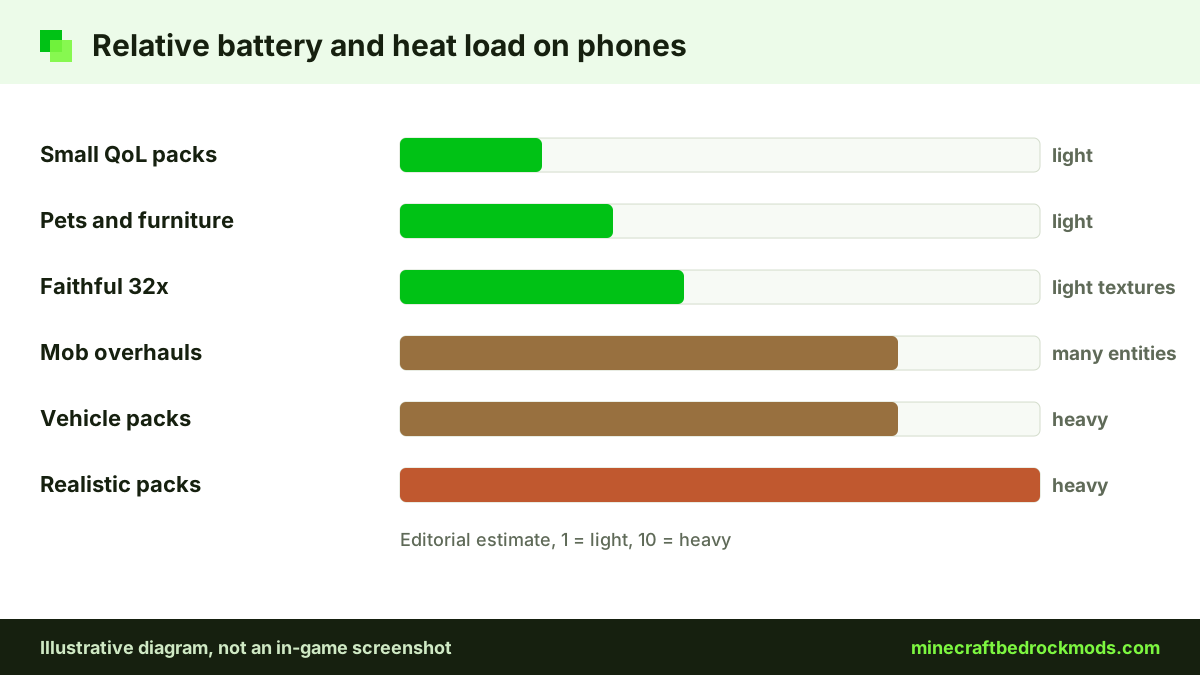
Add-ons that spawn many entities, run frequent scripts or swap in high-resolution textures make a phone work harder. You notice dropped frames, a warm back panel and faster battery drain.
Settings that help
In Video settings, lowering render distance has the biggest effect. If a resource pack offers lighter variants, pick the one meant for mobile. Faithful 32x Bedrock is the lighter Faithful option for phones, and Bare Bones Texture Pack is a simple, light pack for low-end devices. Two well-made add-ons usually run better than six overlapping ones.
Habits that help
Remove a thick case during long sessions if the phone gets hot, avoid playing while fast-charging, and close background apps. If lag starts after adding one pack, test it alone on a fresh world copy.
Low-end device tips
A budget phone may handle a light furniture or pets pack yet stutter with a large mob overhaul. Tablets often have bigger batteries and spread heat better, so keep your heaviest worlds on your strongest device. Our low-end performance guide lists more FPS tips.
Vibrant Visuals on Phones and Tablets
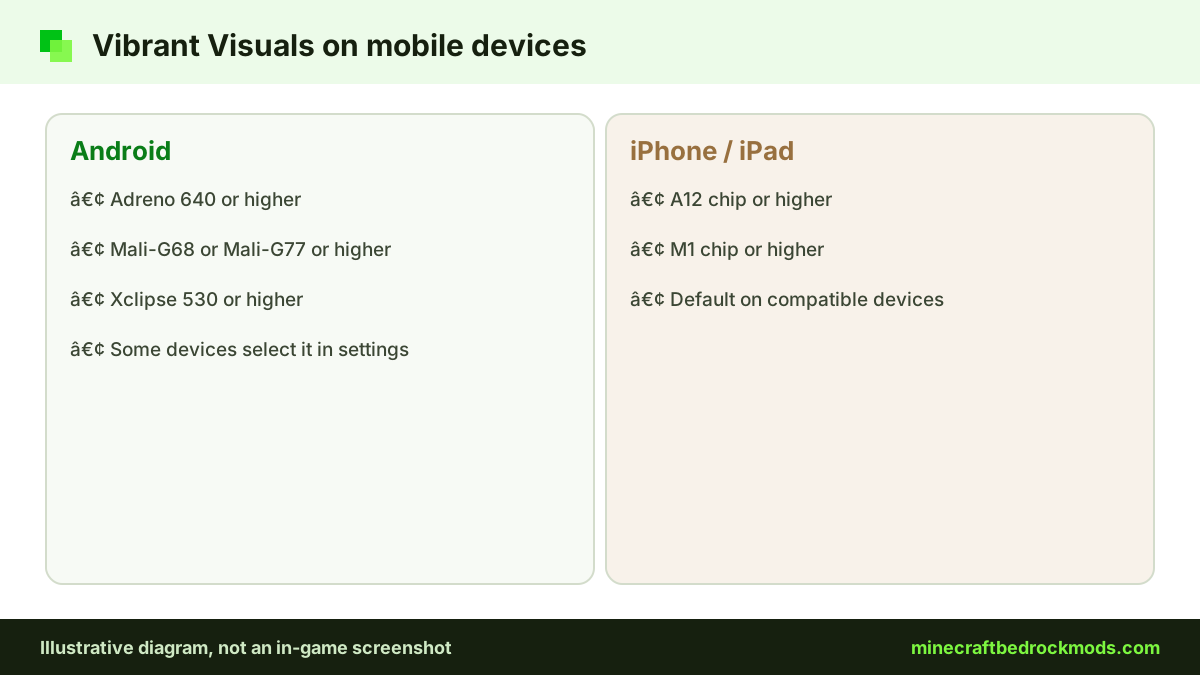
Vibrant Visuals is Mojang's official visual refresh for Bedrock. On Android it needs an Adreno 640, Mali-G68, Mali-G77 or Xclipse 530 GPU or higher; on iPhone and iPad it needs an A12 or M1 chip or higher. On compatible devices it becomes the default graphics mode, while on some Android devices you select it in the graphics settings. If your phone runs hot or frames drop with heavy packs active, try the standard graphics mode and compare. RTX ray tracing is Windows-only and does not apply to mobile.
Touch Controls and Mobile-Friendly Add-ons
Not every add-on is designed for a touchscreen. Some rely on sneaking while interacting, precise placement or custom menus built with a mouse in mind. Check whether the creator mentions mobile support, and read comments from other phone players. In Minecraft's control settings you can adjust the touch layout and button size, and a controller paired to your phone or tablet helps with combat-heavy packs.
Good first picks for phones
Start with light packs that do one job well. Advanced Waypoints is a free, light add-on that lets you mark places so you can always find your way home, and its GitHub release comes as a single .mcaddon. For younger players, Spark Pets Add-On (Lite) is a free Marketplace add-on with 10 pets, colors, outfits and tricks. Because it comes from the Marketplace, it also keeps achievements and works on every Bedrock platform.
Playing modded worlds with friends
A phone can import community packs, so it can prepare a modded world for a Realm. Apply the packs to a world, then upload it to the Realm. Friends who join, including console players, receive the resource packs they need.
Mobile Troubleshooting
- Minecraft is not offered as an app. Fix the file extension, then open the file again.
- Import failed. Update Minecraft from your app store and free up storage.
- Pack imported but nothing changed. Activate both the behavior and resource pack on the world.
- Purple and black textures. The resource pack is missing or sits below a pack that overrides it.
- Heavy lag or heat. Lower render distance and disable the newest pack first.
- Duplicate packs in the list. Delete the old copy in Settings, then Storage, before importing an update.
- Achievements disabled. Expected with community packs or cheats; only Marketplace add-ons keep achievements.
The CurseForge add-on install guide is a helpful second reference.

Safety, Platform and Version Notes
Download only from the Marketplace, CurseForge, MCPEDL, ModBay or a creator's linked GitHub page, and never install an app that claims to add mods automatically. Parents can read our family safety guide to Bedrock mods. On Windows the steps differ slightly; see the Windows add-on install guide. Consoles cannot import community files and use the Marketplace instead.
This guide was written for Minecraft Bedrock 26.60, the latest stable release when we checked on November 5, 2026. Menu labels can move between updates, so check the official Help Center if a button looks different.
Frequently Asked Questions
No. Android and iOS import add-on files directly. Download the file on the phone and open it with Minecraft from a file manager or the Files app.
Safari sometimes adds .zip to unfamiliar file types. In the Files app, long-press the file, choose Rename and restore .mcpack or .mcaddon, then share it to Minecraft.
Heavier ones can. Packs with many entities, frequent scripts or high-resolution textures make the device work harder. Lower render distance and run fewer packs at once.
Android needs an Adreno 640, Mali-G68, Mali-G77 or Xclipse 530 GPU or higher. iPhone and iPad need an A12 or M1 chip or higher.
Be very careful. Add-ons never require an installer app. If you use a browser app, stick to a known publisher and still check each file's extension before opening it.
Open Minecraft's Settings and go to Storage. There you can review and remove resource packs, behavior packs and worlds to free up space.
Conclusion
Phones and tablets are fully capable add-on machines. On Android you tap the file or use a file manager; on iPhone and iPad you share it from the Files app to Minecraft. Either way, activate both halves of the add-on on a backed-up world and switch on only the experiments the creator lists.
After that, the job is keeping the device comfortable: clear old downloads, remove unused packs in Storage, lower render distance, choose lighter texture packs and check whether your chip supports Vibrant Visuals before expecting it.