Minecraft Bedrock mods can turn a smooth world into a slideshow on a budget phone or an older laptop, but most of that slowdown is avoidable. This guide shows which settings matter most, which add-ons are light or heavy, how Vibrant Visuals affects weaker devices, and how to keep a modded world running well as it grows.
Version note: the advice is written for Bedrock 26.60, the latest stable release when we checked on November 5, 2026. We have not benchmarked these tips on our own devices yet. The pack weight labels below are editorial estimates based on what each add-on adds, not measured results.
Why Bedrock Add-ons Slow Down Weak Devices
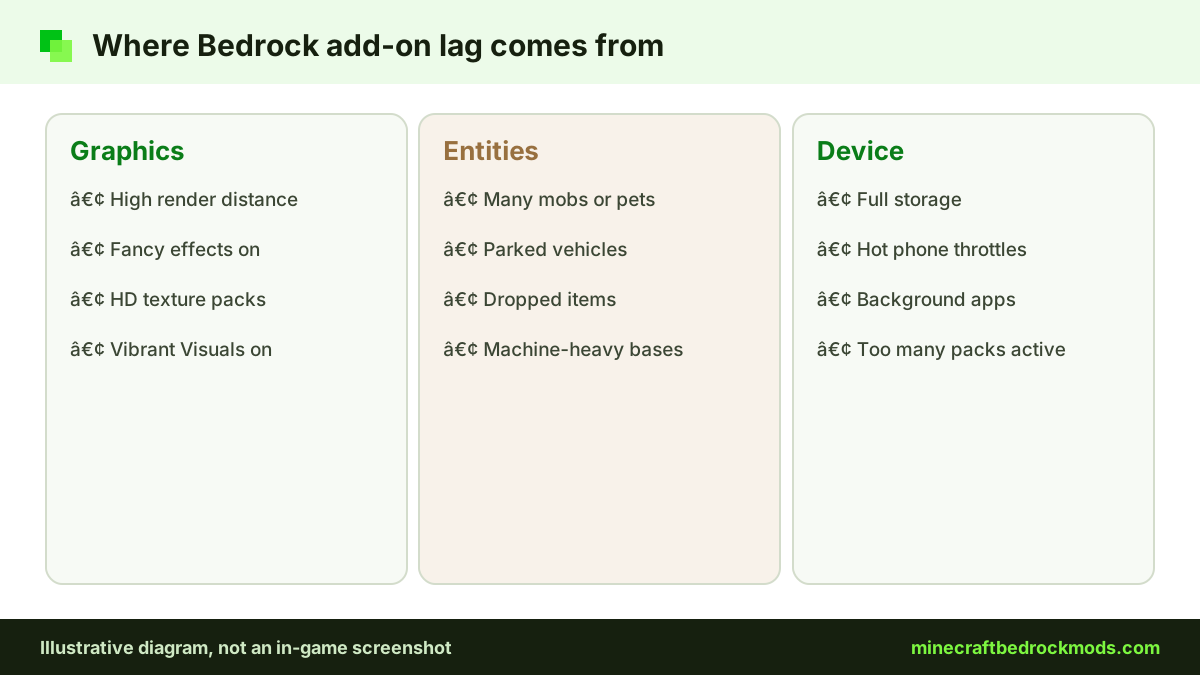
Every add-on asks your device to do more. A behavior pack can add new entities, scripts and blocks that must be simulated every tick. A resource pack adds textures, models and sounds that fill memory. On a low-end device, the bottleneck is usually one of four things:
- Graphics load: high render distance, fancy effects, high-resolution textures and Vibrant Visuals.
- Entity load: many mobs, pets, vehicles or entity-based furniture in loaded chunks.
- Memory: large texture packs and many packs active at once.
- Heat: phones and tablets slow themselves down when they get hot, even if the first ten minutes felt fine.
Fixing the right one first saves a lot of trial and error.
Best Video Settings for Low-End Phones and PCs
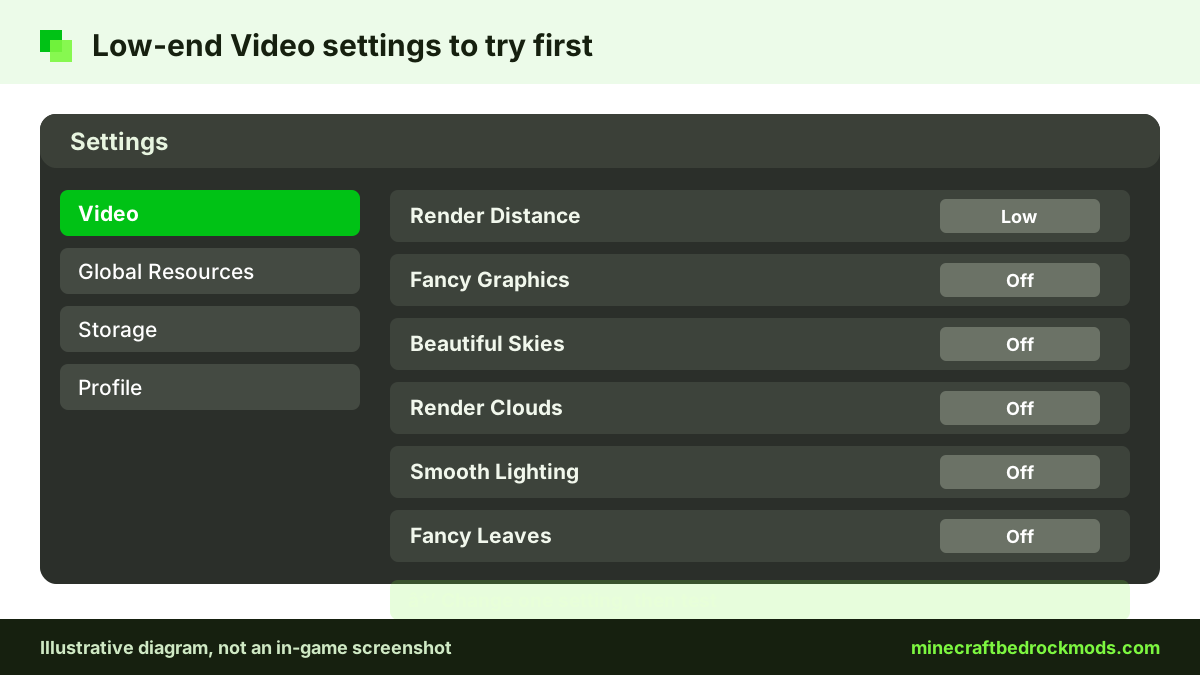
Open Settings, then Video. Exact option names vary a little by platform and version, but these are the ones that usually matter most:
- Render distance: the single biggest lever. Drop it to a low value first, test, then raise it a step at a time.
- Fancy Graphics: turn it off on weak hardware.
- Beautiful Skies and Render Clouds: small gains each, but they add up.
- Smooth Lighting: turning it off helps on very old devices, at the cost of flatter shading.
- Fancy Leaves and Fancy Bubbles: minor, but worth switching off in forest or ocean builds.
Simulation distance lives in the world's own settings rather than the Video menu. A lower value means fewer chunks are actively ticking, which reduces the work done by add-on mobs and machines. Lower it on worlds with heavy behavior packs.
Vibrant Visuals on Weak Devices
Vibrant Visuals is Mojang's official graphics refresh. On compatible devices it becomes the default mode, and on some devices, such as Xbox One, PS4 and some Android phones, you choose it in the graphics settings. Per the official Vibrant Visuals page, Android needs Adreno 640, Mali-G68, Mali-G77 or Xclipse 530 graphics or higher, and iOS needs an A12 or M1 chip or higher.
Being on the list does not mean a device runs it comfortably alongside add-ons. If your phone only just meets the requirement, switch back to the standard graphics mode before adding any heavy pack. RTX is a separate Windows-only feature that needs a ray-tracing capable GPU, so ignore it on low-end hardware. Our texture packs and shaders guide explains both modes.
Light vs Heavy Packs: Editorial Estimates
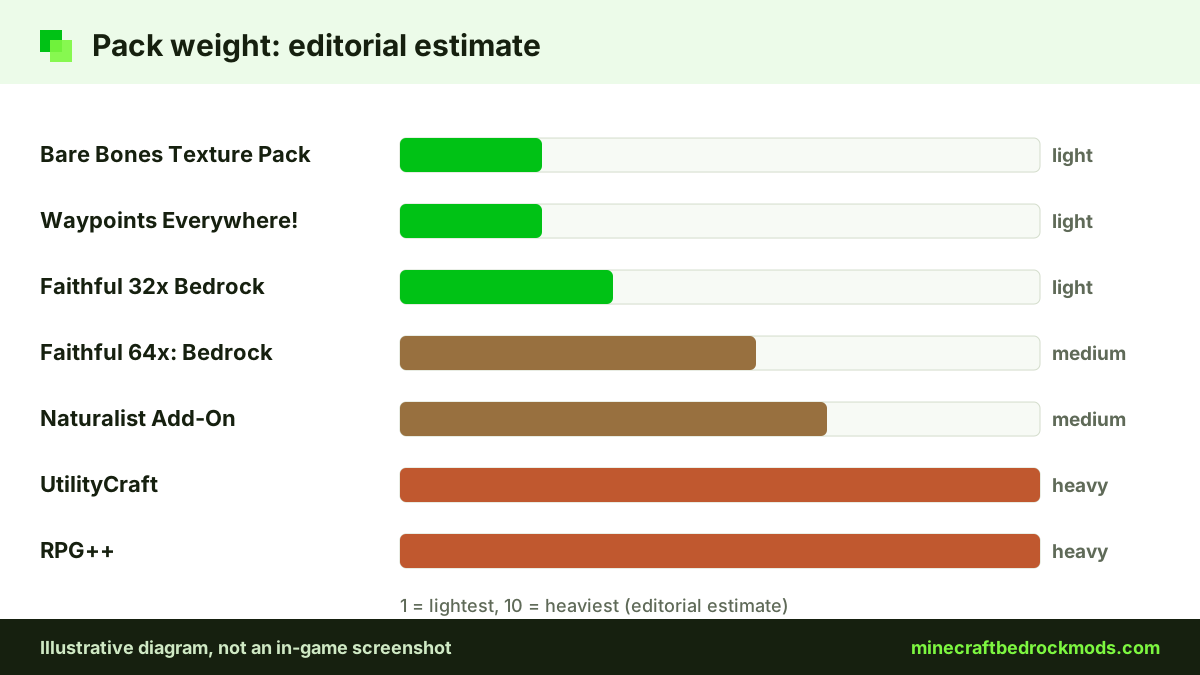
The table groups verified add-ons from our list by estimated weight. These labels are editorial estimates based on what each pack adds, such as resolution, entities or machines, not benchmarks.
| Weight (estimate) | Example packs | What drives the cost | Low-end advice |
|---|---|---|---|
| Light | Bare Bones Texture Pack, Faithful 32x Bedrock, Advanced Waypoints, Waypoints Everywhere!, Another Furniture Add-On, Spark Pets Add-On (Lite) | Low-resolution textures, few entities, small scripts | Safe to combine two or three |
| Medium | Faithful 64x: Bedrock, Biomes O' Discovery, Epic Machinery, Naturalist Add-On, Decocraft, Chaotic World 2.0 | Higher-resolution textures, new mobs, more blocks | One at a time, lower render distance |
| Heavy | RPG++, UtilityCraft, Simple Vehicles Addon, RealSource REALISTIC pack | Many systems, machines, vehicles or realistic textures | Best on PC or recent phones only |
Every pack in the table has a verified source link on our mods download page, and new players will find gentle picks in our starter add-ons guide. For low-end devices, Bare Bones Texture Pack and Faithful 32x Bedrock are the obvious visual picks, and Waypoints Everywhere! describes itself as lightweight. RealSource REALISTIC pack comes in LOW and HD versions, so pick LOW if you try it at all.
Texture resolution and memory
Resolution multiplies quickly. A 32x pack has four times as many pixels per texture as vanilla 16x, and a 64x pack has sixteen times as many. That extra detail sits in memory the whole time you play, which is why a phone with limited RAM may handle Faithful 32x Bedrock but stutter with Faithful 64x: Bedrock. If you love the Faithful look, start with 32x and move up only after testing.
How Many Bedrock Add-ons Is Too Many?
There is no fixed limit, but every active pack adds load. On a budget phone, a sensible starting point is one light texture pack plus two or three light behavior packs. On a mid-range device, you can usually add one medium pack. Save heavy packs such as RPG++ or UtilityCraft for a PC or a recent flagship phone, and run them in a dedicated world rather than stacking them with other large add-ons.
Add packs one at a time and play for a while before adding the next, so you know exactly which pack changed performance. Our best Bedrock mods list notes an estimated weight for every verified pick, which helps when planning a lean set.
Entity Counts and Mob-Heavy Add-ons
Entities are the hidden cost in many add-ons. Every pet, vehicle, custom mob and animated furniture piece in loaded chunks has to be updated. A few practical rules:
- Keep pets and tamed mobs in small groups instead of one giant pen.
- Do not leave dozens of vehicles parked near your base.
- Avoid running several mob packs at once; spawn rates stack.
- Clear item drops after big mining or farm sessions.
- Spread large farms and machine builds out instead of packing them into one chunk area.
If frame rate drops only near your base, entities are the likely cause. If it drops everywhere, look at graphics settings and texture packs first.
World Size, Storage and Phone Heat
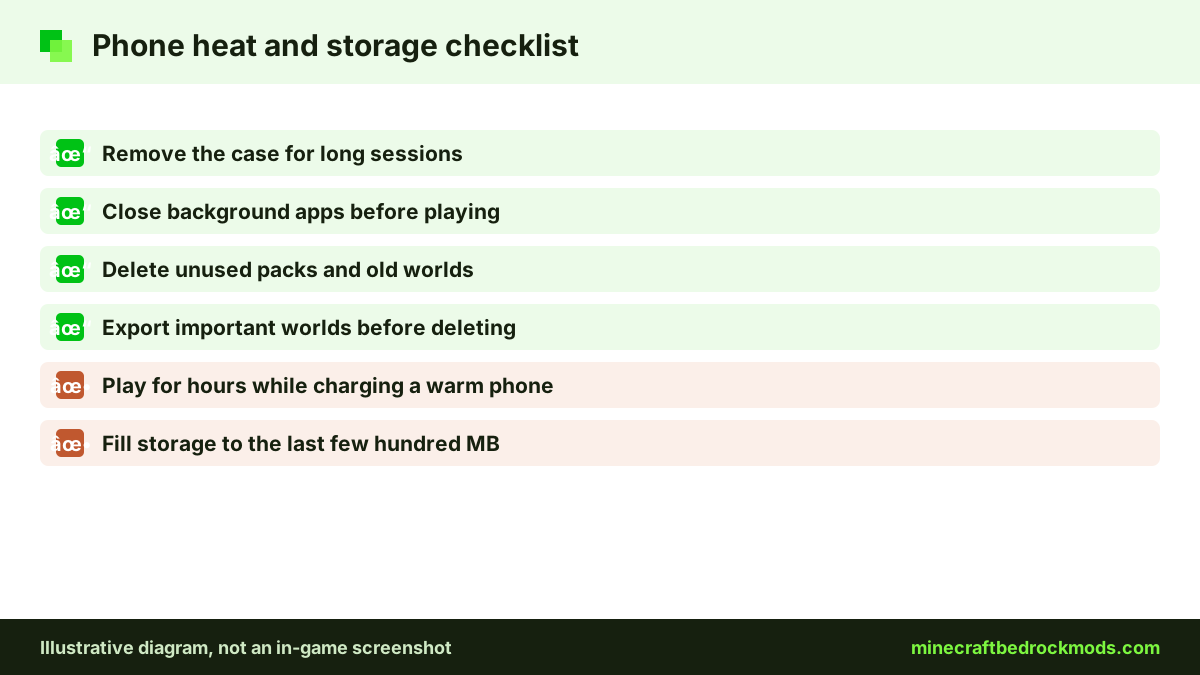
Worlds grow every time you explore new terrain. A large world with many add-ons takes longer to load and uses more storage. Free space matters on phones, because a nearly full device often stutters and can fail to save. Check Settings, then Storage, and delete old packs, unused worlds and cached resource packs you no longer need. Export important worlds as backups before you delete anything.
Heat is the other phone problem. Remove the case during long sessions, avoid playing while charging if the phone gets warm, close background apps and lower brightness. When a phone throttles, no setting will fully fix it until it cools down. Our mobile add-ons guide has more on storage and battery.
Multiplayer worlds and Realms
In multiplayer, every player's device must handle the same packs. When you host a world with add-ons, choose packs that the weakest device in the group can run. Players who join receive the resource packs they need, so a heavy texture pack on the host can slow a friend's older phone. Keep shared worlds lighter than your solo worlds.
Windows Tips for Low-End PCs
Windows has the most headroom, but older laptops still struggle. Plug in the charger and use a balanced or high-performance power mode. Close browsers and launchers running in the background. Keep graphics drivers updated through your PC maker or GPU vendor. If you use a laptop with two GPUs, make sure Minecraft runs on the dedicated one in Windows graphics settings. Keep the game updated too; the Help Center explains how to manually update Bedrock on PC. Our Windows add-ons guide covers pack folders and load order.
Platform Notes
Android: the widest range of hardware, so results vary most. Start with light packs and low render distance.
iPhone and iPad: recent chips handle medium packs well, but storage fills fast. Remove unused packs regularly.
Windows 10/11: the most tuning options and the only platform with RTX.
Xbox, PlayStation and Switch: consoles cannot import community add-on files. They get add-ons from the Marketplace or by joining Realms, servers and worlds that already run packs, so the main levers are video settings and keeping the number of Marketplace packs per world modest.
Troubleshooting Lag and Crashes
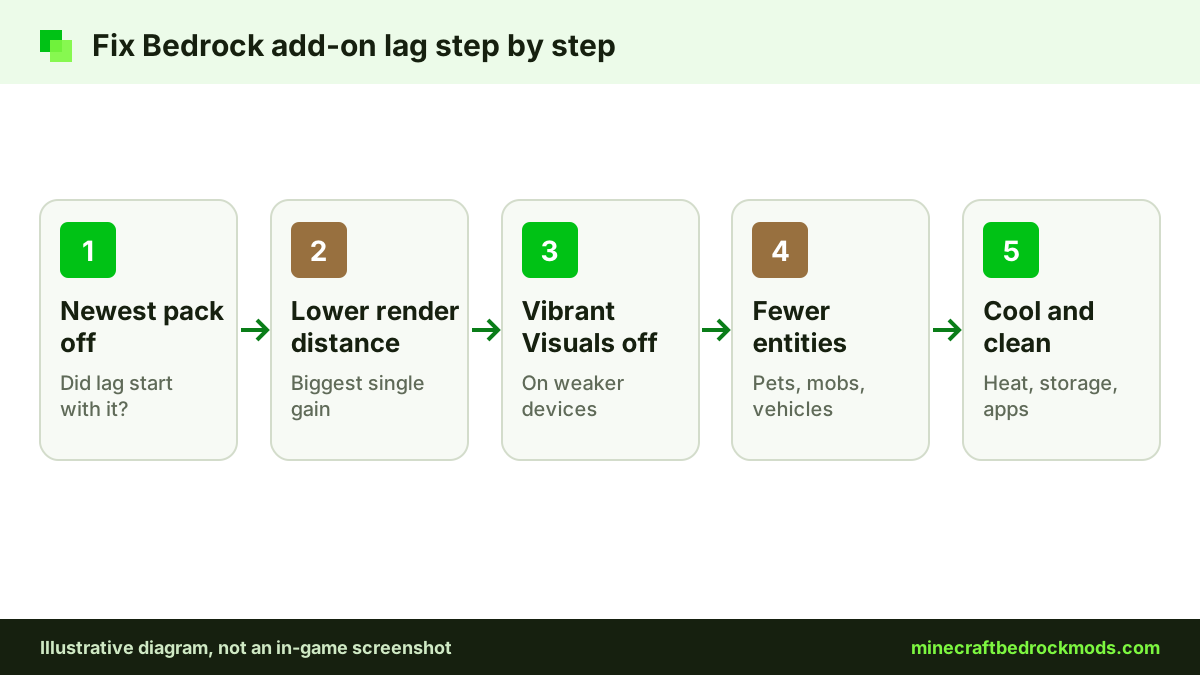
- Lag started after a new pack: deactivate the newest pack first, then test.
- Crash on world load: a pack may not support the current version. Check its page for an update.
- Stutter every few seconds: often storage or heat. Free up space and let the device cool.
- Lag only near your base: too many entities. Thin out mobs, pets and vehicles.
- Low frame rate everywhere: lower render distance and turn off Vibrant Visuals.
- World takes minutes to load: the world may be very large or carry many packs. Try a copy with fewer packs to compare.
- Game closes in the background: the device ran out of memory. Close other apps and use lighter textures.
Safety: Avoid Fake FPS Boosters
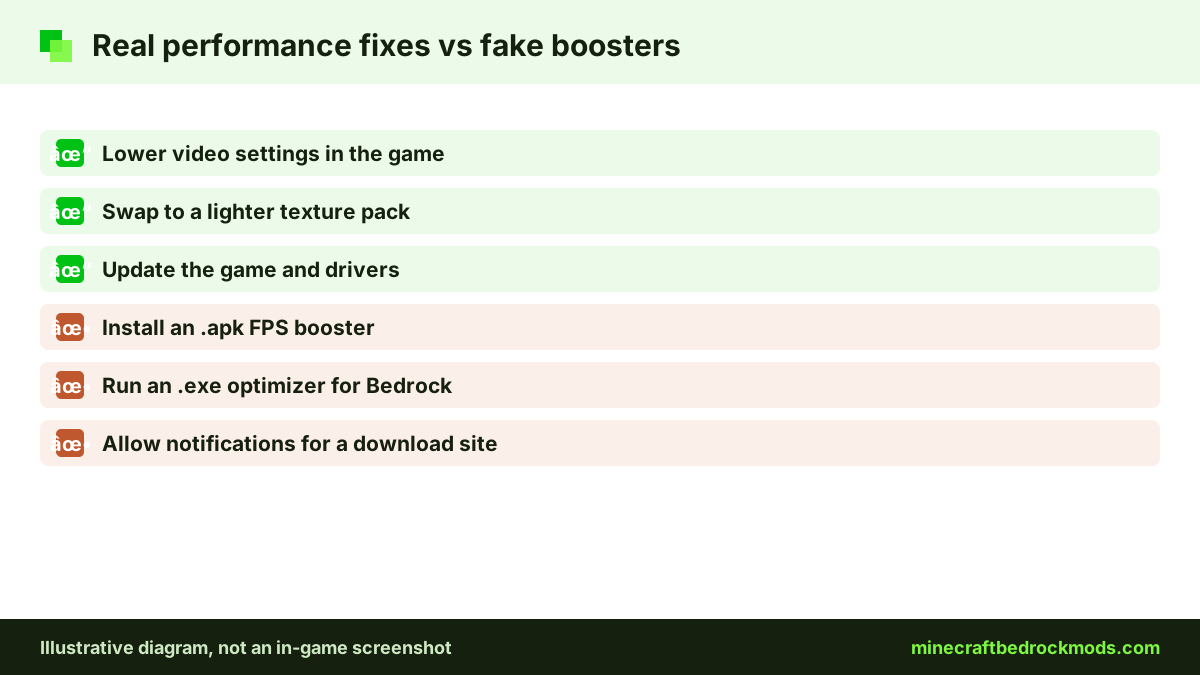
Search results for "FPS boost for Bedrock" often lead to fake optimizer apps and programs. Bedrock performance comes from settings and lighter packs, not from an .apk or .exe you install. Real add-ons arrive as .mcpack, .mcaddon or .mcworld files from verified sources such as the Minecraft Marketplace or CurseForge. Never grant notification, accessibility or admin permissions to a site or app that promises more frames.
Frequently Asked Questions
Render distance. Lowering it reduces how much of the world your device draws, and it usually gives the biggest gain of any setting.
Yes, if the game feels choppy or hot. Vibrant Visuals runs on compatible devices, but switching to the standard graphics mode frees resources for add-ons.
By our editorial estimate, Bare Bones Texture Pack, Faithful 32x Bedrock, Advanced Waypoints, Waypoints Everywhere!, Another Furniture Add-On and Spark Pets Add-On (Lite) are among the lighter verified picks.
Usually too many entities. Pets, mobs, vehicles and dropped items near your base all need updates every tick. Thin them out and lower simulation distance.
No verified booster exists. Apps or programs promising more frames are a common scam. Use the in-game video settings and lighter packs instead.
Consoles cannot import community add-on files. On Xbox, PlayStation and Switch, adjust video settings and keep the number of Marketplace packs per world modest.
Conclusion
Low-end devices can run Bedrock add-ons well if you start with render distance, switch off heavy effects such as Vibrant Visuals, and pick light packs before heavy ones. Most lag comes from graphics load, too many entities, a full storage drive or a hot phone.
Add one pack at a time, watch how your device responds, and remove anything you do not use. A lean set of light add-ons will usually feel better than a long list of heavy ones.