Minecraft Bedrock mods are easier to install than most first-timers expect. There is no mod loader to set up and, on phones and Windows, no folders you have to dig through. You download a pack file from a trusted source, open it so Minecraft imports it, then switch it on inside a world. Most failed installs come from small details: the wrong file type, only half of an add-on activated, or a missing experiment toggle. This beginner guide covers the whole journey, from picking a safe download to playing with the pack, on every Bedrock platform.
What Minecraft Bedrock Mods Really Are
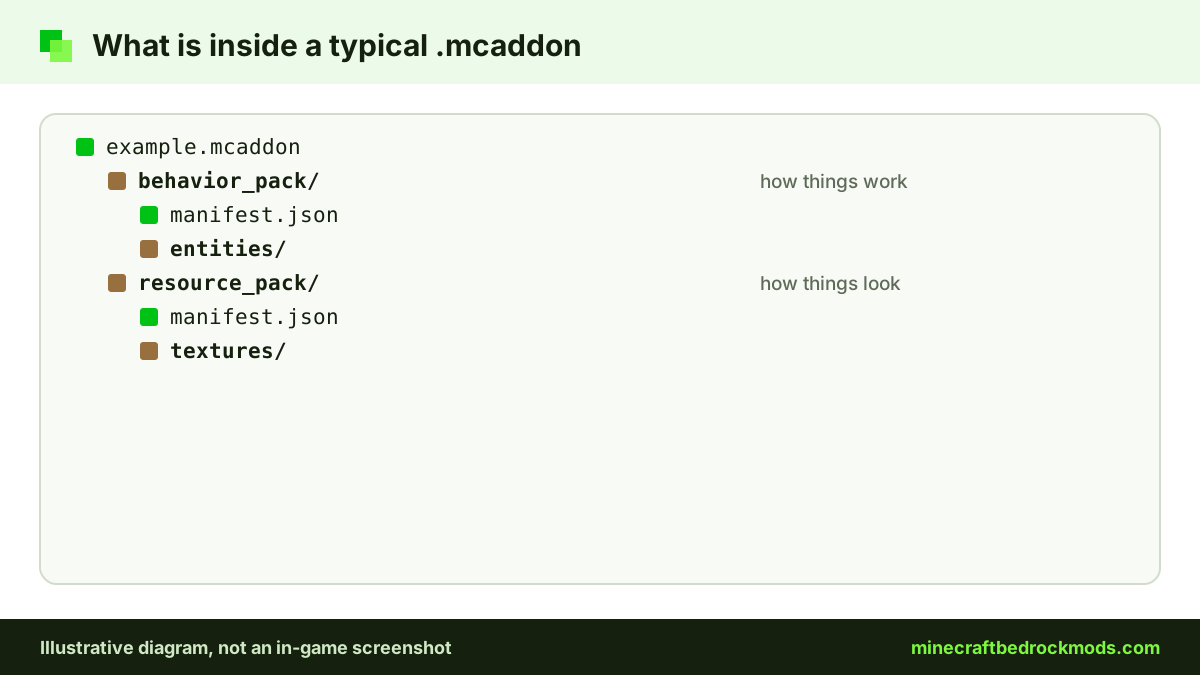
On Bedrock Edition, a "mod" is an add-on. Add-ons are built from two kinds of pack:
- Resource packs change how things look and sound: textures, models, animations and interface art.
- Behavior packs change how things work: mobs, items, recipes, loot and custom logic written in JSON and the JavaScript-based Script API.
A texture pack is resource-only. A new creature usually needs both halves, because the behavior pack defines what it does and the resource pack defines what it looks like. Microsoft's getting started with add-ons page explains the split in more depth. Java Edition mods are .jar files for loaders such as Fabric or Forge, and Bedrock cannot read them at all.
Safe Sources for Bedrock Add-ons
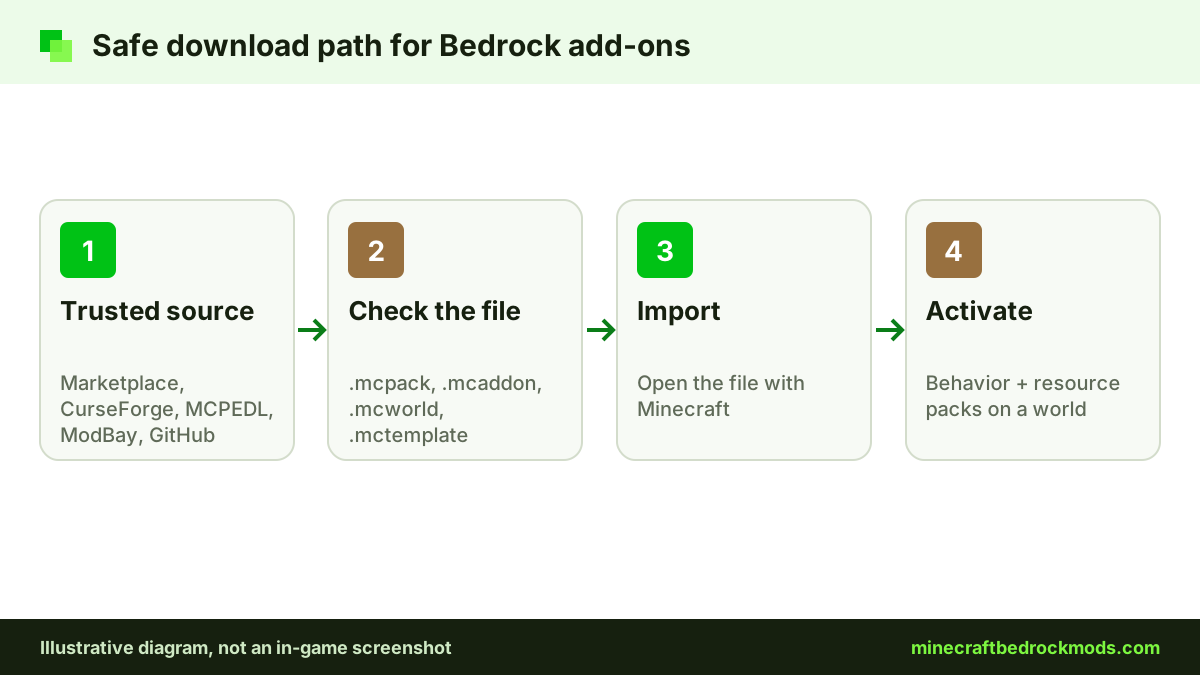
Stick to a short list of reputable places and you avoid most scams before they start:
- Minecraft Marketplace: the official in-game store, with free and paid (Minecoins) add-ons. It works on every Bedrock platform, including consoles.
- CurseForge: a large host with a dedicated Bedrock section. Read each project's file list for supported versions.
- MCPEDL and ModBay: long-running community catalogs for add-ons, maps and packs. Watch for adverts disguised as download buttons.
- Creator GitHub pages: only when the creator links them from their official project page.
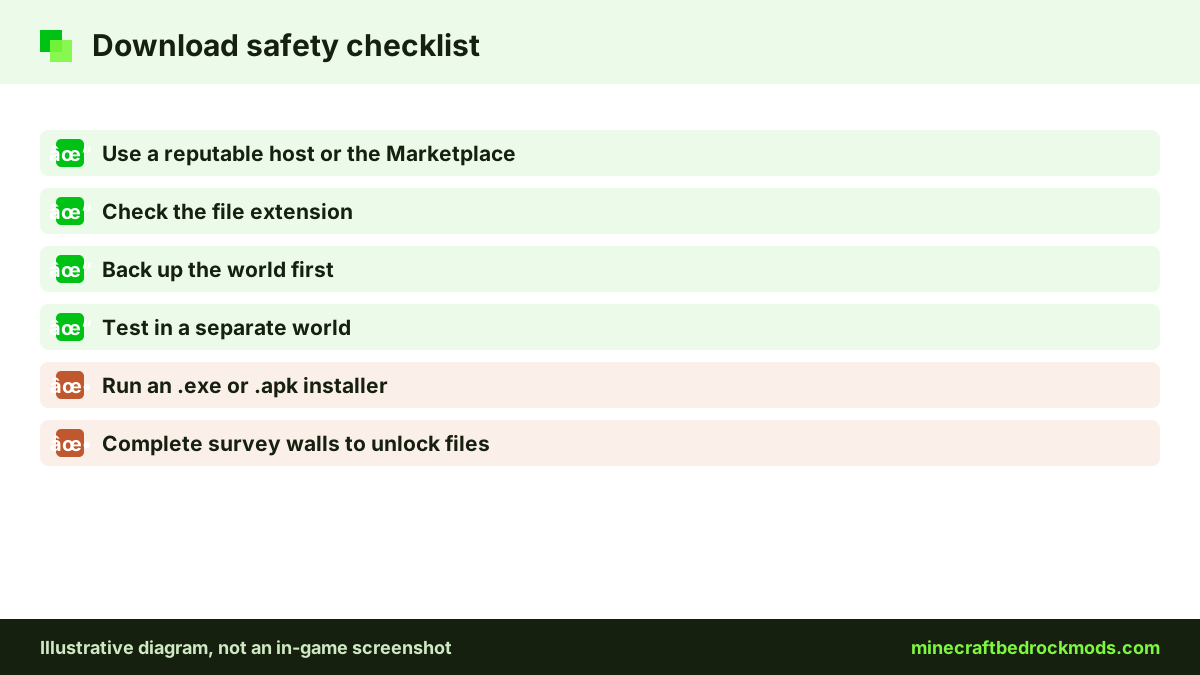
Never install an app, browser extension or .exe that promises to "unlock" a pack. Our Bedrock mods safety guide for families covers fake installers and survey walls in detail.
Every Bedrock File Type Explained
Every legitimate add-on uses one of four extensions. Each tells Minecraft what to do when you open it.
| Extension | What it contains | What opening it does | Typical use |
|---|---|---|---|
.mcpack | One resource pack or behavior pack | Imports that pack into your library | Texture packs, single-half add-ons |
.mcaddon | A bundle of packs, usually behavior plus resource | Imports every pack inside it at once | Mob, item and gameplay add-ons |
.mcworld | A complete world, sometimes with packs attached | Adds a new world to your list | Adventure maps, showcase worlds, backups |
.mctemplate | A world template | Adds a template for creating fresh worlds | Map starters, minigame bases |
A plain .zip needs a closer look, because it may be a renamed pack or a folder of packs. Anything ending in .exe, .apk, .bat or .msi is not an add-on. Delete it.
Before you tap download
Thirty seconds of checking saves a lot of frustration:
- Version: the page lists support for a recent game version, or recent comments confirm the pack still works.
- Requirements: you know which experiments or dependency packs the creator asks for.
- Device: you are on Android, iPhone, iPad or Windows, the platforms that can import community files.
- Backup: the world you plan to use has a fresh copy, for example an exported .mcworld.
- Build choice: if the page offers several files, such as a lite or mobile version, you know which one suits your device.
Import on Android, iPhone, iPad and Windows
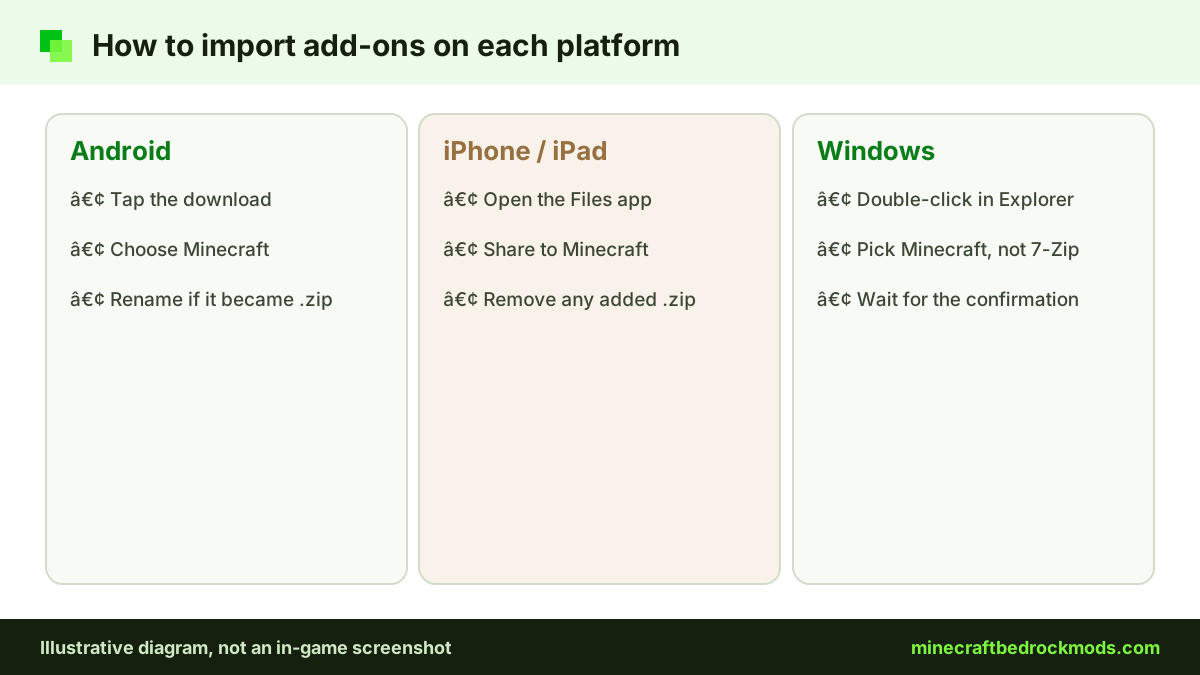
Importing means handing the file to Minecraft. The game shows an import message, then confirms success or explains the failure.
Android
Tap the finished download in your browser or file manager and choose Minecraft if Android asks which app to use. If the file opens as an archive, the browser may have changed the extension. Rename it back to .mcpack or .mcaddon and try again.
iPhone and iPad
Downloads land in the Files app. Long-press the file or use the share button, then pick Minecraft. If Minecraft is missing from the list, check that the file did not gain a .zip ending. Our mobile setup guide for Android and iOS covers storage, battery and touch controls.
Windows 10 and 11
Double-click the file in File Explorer. If Windows offers an archive tool, choose Minecraft instead and set it as the default. The Windows add-on install guide adds a manual folder method and pack order tips.
Consoles: The Marketplace Route Only
Xbox, PlayStation and Nintendo Switch cannot import community .mcpack, .mcaddon or .mcworld files. Console players get add-ons from the Marketplace, which the Help Center confirms works on any platform that runs Bedrock. They can also join a Realm, server or friend's world that already runs packs, and resource packs download when they join. Our console add-ons guide explains both routes.
Realms follow a similar pattern. The Realm owner opens the Realm Hub, goes to the World tab, chooses Edit World and activates packs from My Packs or Marketplace Pass Packs. Community packs reach a Realm by being applied to a world on Android, iOS or Windows, which is then uploaded to the Realm. Friends who join receive the resource packs they need.
Activate Packs in a World
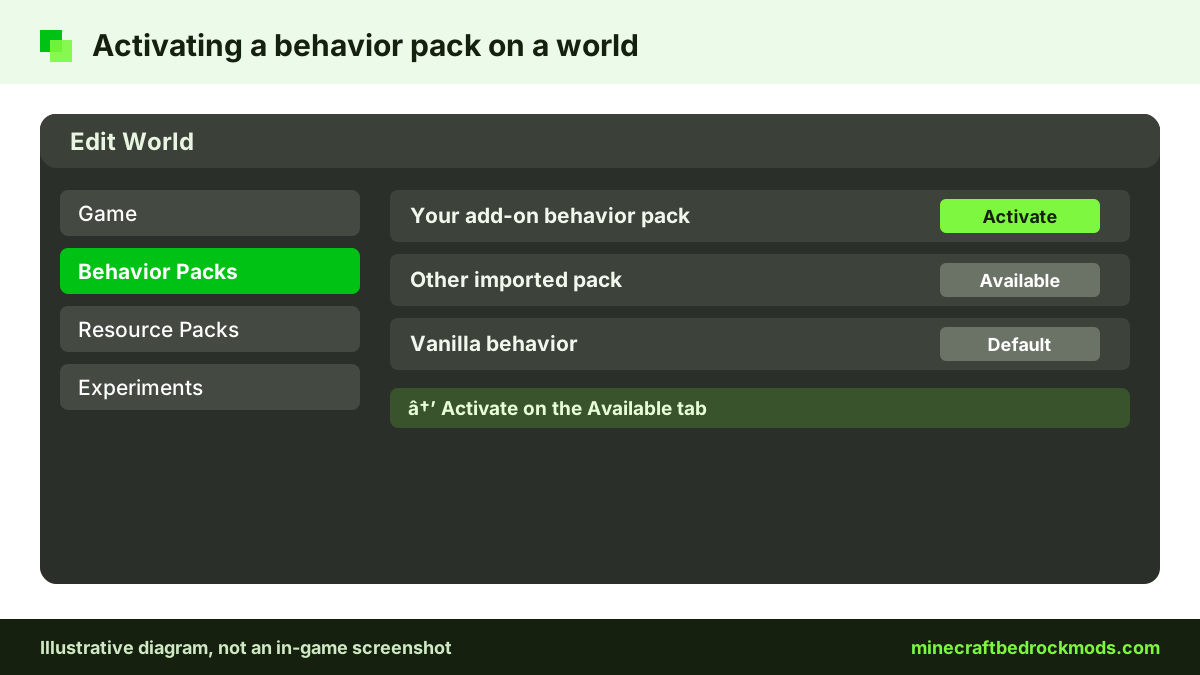
Importing only puts a pack in your library. It does nothing until you activate it on a world. These steps follow the official Help Center guide to activating add-ons.
New world
- Tap Play, then Create New World.
- Open Behavior Packs or Resource Packs.
- Find your pack on the Available tab and tap Activate.
- Tap Create.
Existing world
- Tap Play, then the pencil icon next to the world.
- Open Behavior Packs or Resource Packs and activate the pack.
- Tap Play.
Back up an existing world first. When you activate a behavior pack, Minecraft usually offers to add its matching resource pack. If it does not, activate that half yourself.
Experiments and Achievements
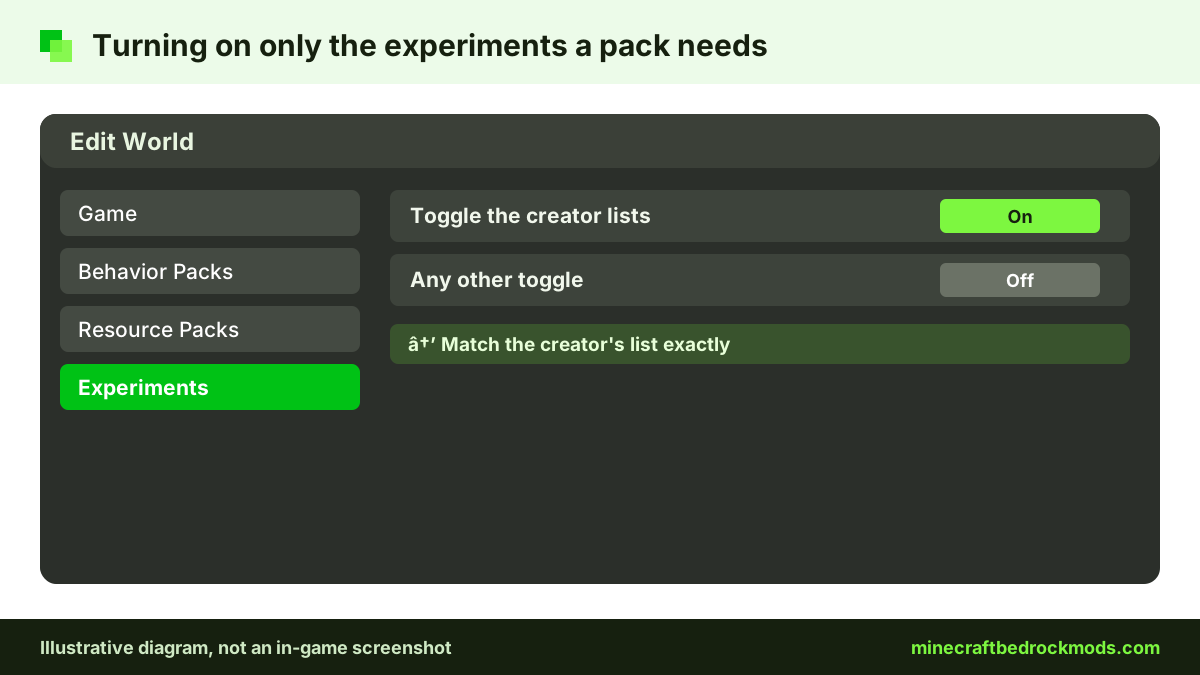
Some add-ons rely on features that are still in development. Their creators list the experiment toggles they need, which you switch on in the world's Experiments section. Enable only the toggles the creator names, because experimental features can change between updates.
Achievements have one important nuance. Since July 2025, Minecraft lets you earn achievements with add-ons on all platforms, but only with add-ons released through the Marketplace. Community packs from CurseForge, MCPEDL, ModBay or GitHub do not qualify, and cheats also disable achievements. Player reports after 26.50 say some packs labelled "achievement friendly" still triggered the disabled mark, so treat those labels with caution. See our achievements and add-ons guide for a vanilla-world plan.
A Worked Example: Advanced Waypoints
Advanced Waypoints by Endermen76428 is a free, light add-on that lets you create waypoints so you can always find your way home. Its official GitHub page offers a v8.1 release from April 4, 2026, packaged as an .mcaddon in TP and no-TP builds. Pick one build, open the .mcaddon, and both packs import together. Then activate it in a test world as described above.
For a resource-only example, Faithful 32x Bedrock ships as a single .mcpack. It is the lighter Faithful option for phones, and you activate it under Resource Packs only.
Common First-Time Mistakes
- Activating only one half. Invisible mobs or purple-and-black blocks usually mean the resource pack is missing.
- Skipping required experiments. Items, blocks or scripts may not load without them.
- Expecting world-gen changes nearby. New biomes and structures appear only in freshly generated chunks.
- Stacking conflicting packs. When two packs edit the same file, the one higher in the active list wins.
- Using an outdated version. An old pack may import fine but fail quietly in game.
- Importing duplicates. Remove the old copy from Settings, then Storage, before installing an update.
Troubleshooting Import Errors
If Minecraft reports "Import failed" or the pack never appears, check these in order:
- Confirm the extension is correct and was not altered by your browser.
- Update Minecraft, since packs made for a newer version may refuse older builds.
- Delete any older copy of the same pack from Storage, then import again.
- Disable every other pack and test the new one alone to rule out a conflict.
If the pack imports but misbehaves, check its position in the active list and move it above packs that override it. The CurseForge install walkthrough is a useful second reference.
Safety and Platform Notes
Keep a dedicated test world for every new pack, and back up any world you care about before activating something. Read the description and recent comments on the download page, and check that the file size makes sense. If a page sends you through countdown timers, notification prompts or repeated pop-ups, back out and find the creator's official page instead. A free community add-on never needs your password, phone number or payment details to download. Parents can help younger players by sticking to the Marketplace, where content is curated and works on every device. Remember that Android, iOS and Windows can import community files, while consoles rely on the Marketplace, Realms and servers.
Version Note
This guide was written for Minecraft Bedrock 26.60, the latest stable release when we checked on November 5, 2026. Menu labels can move between updates, so if a button looks different, check the official Help Center page on add-ons for current wording.
Frequently Asked Questions
Most community add-ons on CurseForge, MCPEDL and ModBay are free. Marketplace add-ons can be free or paid with Minecoins. Be wary of any site that asks for payment or personal details to unlock a pack the creator shares for free.
An .mcpack holds a single resource or behavior pack. An .mcaddon bundles several packs, usually one of each, so they import together in one step.
The game cannot find the textures it expects. Usually the resource pack half is not active on the world, or another pack above it overrides it. Activate it under Resource Packs and move it higher.
No. Consoles cannot import community files. Use Marketplace add-ons, or join a Realm, server or friend's world that already runs the packs.
Only Marketplace add-ons keep achievements. Community packs from other sites, and cheats, disable achievements for that world, so keep a separate vanilla world if achievements matter to you.
Deactivate it in the world's Behavior Packs and Resource Packs lists, then delete it from Settings, Storage. Removing a pack can make its custom items, blocks or mobs disappear from that world.
Conclusion
Every Bedrock add-on follows the same path: a trusted source, a real .mcpack, .mcaddon, .mcworld or .mctemplate file, an import, and activation on a backed-up world. Most problems disappear once both halves of an add-on are active and any required experiments are switched on.
Start small with one light pack in a test world, learn how imports and pack order behave, then build up. Console players should use the Marketplace or join a world that already runs packs, and anyone who cares about achievements should stick to Marketplace add-ons.