Minecraft Bedrock mods run well on Windows 10 and 11, and a desktop brings real advantages: a big screen for building, a mouse for precise menus and usually more memory for heavy packs. The catch is that many PC players own both Java Edition and Bedrock Edition, and add-ons only work in Bedrock. This guide covers the double-click import, a generic manual folder method, pack order, performance, Vibrant Visuals and RTX, and a clear comparison with Java mods.
Bedrock or Java? Check Your Edition First
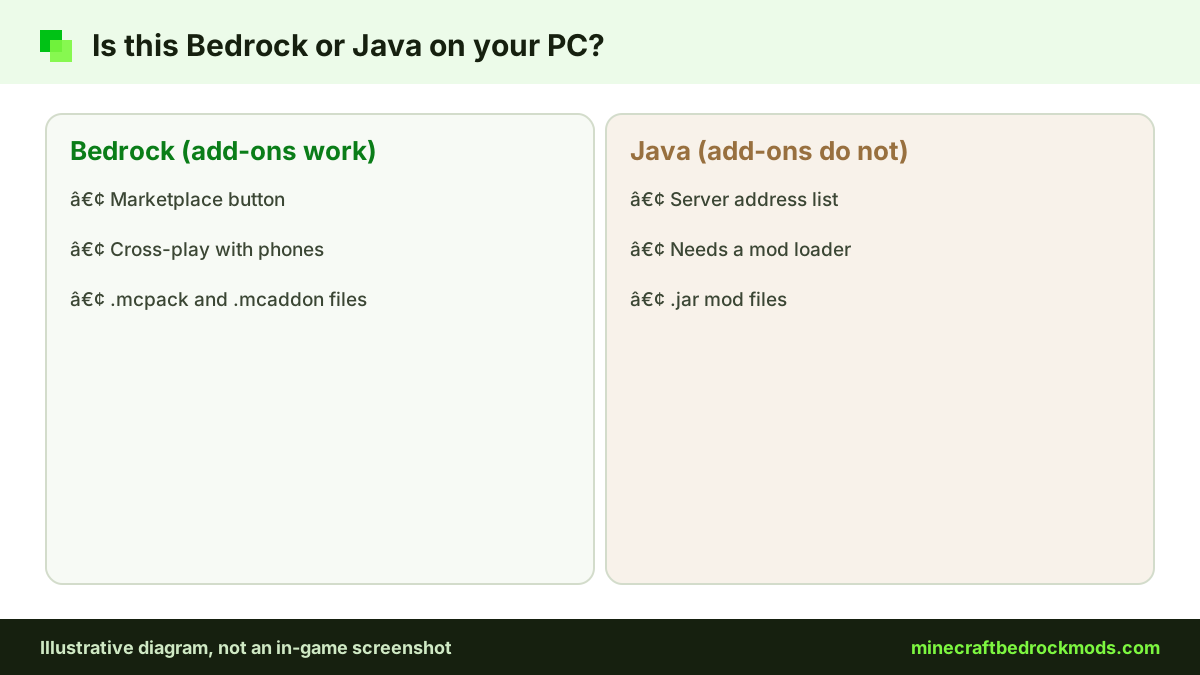
Bedrock and Java are separate games with separate worlds, settings and mod systems, even when you launch both from the same Minecraft Launcher. Bedrock add-ons use .mcpack, .mcaddon, .mcworld and .mctemplate files. Java mods are .jar files that need a loader such as Fabric, Forge, NeoForge or Quilt.
The quickest test is the title screen. Bedrock shows a Marketplace button and cross-play with friends on phones and consoles. If you see a server address list and no Marketplace, you are in Java. Launch Bedrock from the launcher and use it for everything below.
Prepare Your PC Before Installing
- Update the game. Packs made for the latest release may refuse an older build. The Help Center explains how to manually update Bedrock on PC if an update stalls.
- Show file extensions. In File Explorer's View options, turn on file name extensions so you can spot a file that is really pack.mcpack.zip, or worse, pack.exe.
- Back up your worlds. Export a world as an .mcworld from its settings before attaching new packs. Our backup and transfer guide covers this step by step.
- Use reputable sources. Stick to the Marketplace, CurseForge, MCPEDL, ModBay or a creator's linked GitHub page.
- Scan downloads. Right-click a file and scan it with Windows Security before opening a pack from an unfamiliar creator.
Method 1: Double-Click Import
For nearly every player, this is the only method you need. Bedrock registers itself with Windows as the app that opens its pack files.
- Download the add-on and open your Downloads folder in File Explorer.
- Double-click the .mcpack, .mcaddon or .mcworld file.
- Minecraft launches, or comes to the front, and shows an import message.
- Wait for the success confirmation. An .mcaddon shows one confirmation per pack inside it.
For example, Advanced Waypoints by Endermen76428 ships its v8.1 GitHub release as an .mcaddon in TP and no-TP builds. Double-click one build and both of its packs import together.
If Windows asks how to open the file, pick Minecraft rather than 7-Zip or WinRAR, and set it as the default. If the file opens as a folder of JSON files, an archive tool has claimed the extension. Right-click the file, choose Open with, and select Minecraft.

Pro tip: import packs one at a time and wait for each confirmation. If something fails, you will know exactly which file caused it.
Method 2: The Manual Folder Method
Occasionally a creator shares a pack as a plain .zip or unpacked folders, or the double-click import refuses to work. You can then place the pack in the game's data folder, called com.mojang. Its location on Windows depends on how the game was installed and has changed between releases, so we describe it generically instead of giving a path that may not match your PC.
Find the data folder
Search your user folders in File Explorer for com.mojang and pick the copy with recent modified dates. Inside you will find folders including behavior_packs, resource_packs and minecraftWorlds.
Place the packs
Extract the download so each pack folder has a manifest.json directly inside it, not buried several levels deep. Copy behavior packs into behavior_packs and resource packs into resource_packs, then fully restart Minecraft. A buried manifest is the most common reason a manual pack never appears. Microsoft's intro to behavior packs shows what a correct pack folder looks like.
Manual placement skips the checks Minecraft runs during import, so use it only as a fallback and only with files you trust.

Activate Bedrock Add-ons on a Windows World
Importing places packs in your library; they do nothing until you attach them to a world. Following the official Help Center activation steps:
- New world: Play, Create New World, open Behavior Packs or Resource Packs, activate the pack on the Available tab, then Create.
- Existing world: Play, select the pencil icon, open Behavior Packs or Resource Packs, activate the pack, then Play.
If the creator lists experiments, switch on only those toggles in the world's Experiments section. Our beginner download and install guide explains file types and experiments in more detail.
Getting Pack Order Right
When several packs are active on a world, the list works from the top down. A pack higher in the list wins when two packs change the same file. A practical order:
- Top: small fix or patch packs that make two add-ons work together.
- Upper middle: interface and HUD tweaks.
- Middle: content add-ons such as mobs, furniture or tech.
- Bottom: broad texture packs, so specific add-on textures sit above them.
If one pack's feature seems to vanish, move it above the other pack and reload the world.
Updating and removing packs
Before installing a new version of an add-on, deactivate the old one on your test world and delete it from Settings, then Storage. Importing a second copy on top of the first can leave duplicates that make the pack list confusing. Then import the new file and activate it again. Removing a pack from a world can make its custom items, blocks or mobs disappear, so always update on a backed-up copy before touching your main save.
Sharing a modded world from your PC
Windows can import community packs, which makes a PC a good place to prepare a modded world for friends. Apply the packs to a world, then upload it to your Realm. Players who join, including console friends, receive the resource packs they need, as the Help Center notes for Realms.

Performance Tips for Minecraft Bedrock Mods on PC
- Lower render distance first. It has the biggest effect on frame rate, especially with biome and structure packs.
- Limit entity-heavy add-ons. Mob, vehicle and entity-based furniture packs cost more as their numbers grow.
- Be selective with visual packs. Very high-resolution textures strain the graphics card and its memory.
- Close background apps. Browsers with many tabs and recording software compete for memory.
- Keep graphics drivers current. Driver updates fix rendering glitches that are easy to blame on an add-on.
- Use the dedicated GPU on laptops. Windows graphics settings let you choose a preferred GPU per app.
Our performance guide for low-end devices goes deeper on heavy and light packs.

Vibrant Visuals and RTX on Windows
Vibrant Visuals is Mojang's official visual refresh for Bedrock. On Windows it needs a PC running Minecraft on DX12, and on compatible devices it becomes the default graphics mode. Resource packs can add Vibrant Visuals support through their manifest.
RTX ray tracing is a separate, Windows-only mode. It needs a ray-tracing capable graphics card plus an RTX-enabled resource pack or world. Some packs support both: RealSource REALISTIC pack offers RTX and Vibrant Visuals support in LOW and HD versions, but it is a heavy pack. For a sharper vanilla look, Faithful 64x: Bedrock is a medium-weight choice. Our texture packs and shaders guide compares more options.
Bedrock PC Add-ons vs Java Mods
| Feature | Bedrock add-ons (Windows) | Java Edition mods |
|---|---|---|
| File types | .mcpack, .mcaddon, .mcworld, .mctemplate | .jar files |
| Loader needed | None, built into the game | Fabric, Forge, NeoForge or Quilt |
| Built with | JSON and the JavaScript Script API | Java code |
| Install method | Double-click import, then activate per world | Copy into a loader profile's mods folder |
| Cross-play | Phones, tablets and consoles on the same world | Java players only |
| Main sources | Marketplace, CurseForge, MCPEDL, ModBay | CurseForge, Modrinth |
| Also runs on | Android, iOS and, via Marketplace, consoles | Desktop computers only |
| Achievements | Kept only with Marketplace add-ons | Separate system |
Files from one edition never work on the other. Java mods can rewrite deeper parts of the game, while Bedrock add-ons stay within the official add-on system, which is why the same pack can run on Windows, phones and tablets. Any download claiming to convert Java mods for Bedrock automatically, especially as an .exe installer, is a red flag.
Fixing Common Windows Problems
- The file opens in an archive tool. Reset the default app for the extension to Minecraft.
- Import fails with a version warning. Update the game, or find a pack version built for your release.
- The pack is missing in world settings. Check the right tab; resource and behavior packs are listed separately.
- Textures appear purple and black. Activate the resource pack half and move it above broad texture packs.
- Achievements are disabled. Only Marketplace add-ons keep achievements; community packs and cheats turn them off for that world.

Safety, Platform and Version Notes
Never run an installer that claims to add packs for you, and keep a separate test world for new add-ons. To use the same add-ons on a phone or tablet, import the files on that device too; see our Android and iPhone add-on setup guide for mobile devices. Console players cannot import community files and rely on the Marketplace or modded Realms.
This guide was written for Minecraft Bedrock 26.60, the latest stable release when we checked on November 5, 2026. Menu labels can shift between updates, so check the official Help Center if a button looks different.
Frequently Asked Questions
You need Bedrock Edition installed, but the launcher does not have to be open. Double-clicking an .mcpack or .mcaddon starts the game and imports the pack.
No. Java mods are .jar files built for Java Edition loaders. Bedrock cannot read them, so look for a Bedrock add-on with similar features instead.
An archive program has taken over the file type, because pack files are zip-based. Right-click the file, choose Open with, select Minecraft and set it as the default.
On Windows, Vibrant Visuals needs a PC running Minecraft on DX12. RTX is a separate Windows-only mode that needs a ray-tracing capable graphics card and an RTX-enabled pack.
Marketplace add-ons keep achievements. Community packs from CurseForge, MCPEDL, ModBay or GitHub, and cheats, disable achievements for that world.
There is no fixed number, because every pack differs. If you notice stutters, lower render distance and trim entity-heavy packs before upgrading hardware.
Conclusion
Installing add-ons on Windows is simple once you are sure you are in Bedrock rather than Java. The double-click import handles almost every pack, and the manual folder method is a fallback that works best when you find the com.mojang folder yourself instead of guessing a path.
After importing, keep fixes near the top of the pack list, content in the middle and broad texture packs at the bottom. Watch render distance and entity-heavy packs, back up every world, and treat Vibrant Visuals and RTX packs as optional extras that your hardware has to support.